how to run ai image generator locally on your computer
Running an AI image generator locally gives you full control over your creations without relying on cloud services. This guide covers everything you need, from hardware requirements to installing open source models like Stable Diffusion on your home computer. You will learn how to set up free AI tools, generate stunning images offline, and protect your privacy while creating AI art.
Creating AI-generated art used to mean signing up for online services, waiting in queues, and hoping your images did not get flagged. But now, you can run an AI image generator directly on your own machine. Whether you are a hobbyist exploring AI art or a designer building custom visuals, running models locally opens up a world of possibilities.
When you run AI image generation on your own hardware, you skip the cloud entirely. There are no monthly fees, no usage limits, and no worries about your creations being stored on someone else’s servers. This guide walks you through everything you need to know, from picking the right hardware to installing your first model and generating beautiful images right on your home computer.
The process might sound intimidating at first, but it is more accessible than most people think. With a few simple steps and the right tools, you can have a fully functional local setup in under an hour. Let us dive in and explore how to run an AI image generator locally on your computer.
Key Takeaways
- Local AI image generation is possible on most modern computers with the right hardware and software setup.
- Open source models like Stable Diffusion are free to download and run without any subscription fees.
- A dedicated GPU with sufficient VRAM makes a huge difference in speed and image quality.
- Running models offline protects your privacy since no data leaves your machine.
- Custom models and fine-tuning let you create unique AI art tailored to your style.
- Common issues like low VRAM or slow speeds can be fixed with the right optimization settings.
📑 Table of Contents
What Is a Local AI Image Generator?
A local AI image generator is a software model that runs directly on your computer instead of on remote servers. You install the model files and the software, and then your machine handles all the processing. This means you do not need an internet connection to create images once everything is set up.
The most popular approach uses something called a diffusion model. These are machine learning systems trained on millions of images. They learn patterns, styles, and details, and then they can generate brand new images from text descriptions. When you run this process locally, your computer’s processor and graphics card do all the heavy lifting.
How Does Local Image Generation Work?
When you type a text prompt into a local tool, the AI model uses your hardware to interpret your words and create an image from scratch. This process is called inference. Your CPU and GPU work together to crunch numbers, apply mathematical transformations, and gradually refine noise into a detailed picture.
The beauty of offline AI is that every step happens inside your own machine. No data is sent to a remote server. No one can see what you are creating. This makes local generation a great choice for people who care about privacy and want full control over their creative workflow.
Hardware Requirements for Running AI Models Locally
Before you start, it helps to know what your computer needs to handle AI image generation. The requirements vary depending on the model you choose, but there are some general guidelines that apply to most setups.
Graphics Card (GPU)
Your GPU is the most important piece of hardware for running AI models locally. The more video memory (VRAM) your card has, the better. Here is a quick look at what you need:
- 8 GB VRAM: This is the minimum for most models. You can run smaller versions of Stable Diffusion with decent speed.
- 12 GB VRAM: A solid mid-range option. You get faster generation times and can use higher resolution settings.
- 16 GB+ VRAM: Ideal for serious users. You can run large models, use advanced features, and generate images quickly.
NVIDIA cards tend to work best because of their strong support for machine learning frameworks. AMD GPUs can also work, but the setup process is a bit more involved. If you are on a budget, even a used graphics card with 8 GB of VRAM can get you started.
CPU and RAM
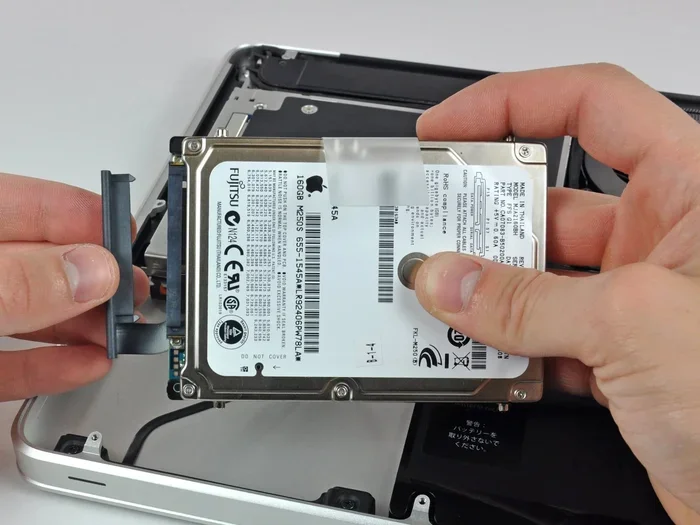
Your processor and memory matter too, but they play a supporting role. Aim for at least 16 GB of system RAM. A modern multi-core CPU from the last few years will handle inference tasks without breaking a sweat. If you have 32 GB of RAM, even better.
Storage Space
AI model files can be large. A base Stable Diffusion model is around 4 to 7 GB. Add custom checkpoints, LoRA files, and training data, and you can quickly fill up several gigabytes. Make sure you have at least 50 GB of free disk space, preferably on an SSD for faster loading times.
Setting Up Your Environment for Local AI Image Generation
Now that you know what hardware you need, let us walk through the setup process. This section covers everything from choosing your software to installing your first model.
Choosing the Right Software
There are several free AI tools designed to make local setup easy. The most popular options include:
- Automatic1111 (Stable Diffusion WebUI): A web-based interface that is beginner-friendly and packed with features. It is the go-to choice for most people starting out.
- ComfyUI: A node-based interface that gives you more control over your generation pipeline. Great for advanced users who want to build complex workflows.
- Fooocus: A simplified tool that focuses on ease of use. It handles most settings automatically, so you can start creating right away.
- Draw Things: A native macOS application that makes running AI models on Apple Silicon Macs straightforward.
For most users, Automatic1111 is the best starting point. It has a large community, plenty of tutorials, and a user-friendly interface that makes experimenting with local AI fun and straightforward.
Installing Python and Dependencies
Most local AI tools require Python to be installed on your system. Python is a programming language that the software uses to communicate with your hardware. Here is what you typically need to do:
- Download and install Python 3.10 or newer from the official website.
- Install Git, which lets you download the software from its repository.
- Clone the tool’s repository to your computer using a terminal command.
- Run the installation script, which automatically installs all required dependencies.
- Launch the tool and point it to your model files.
Do not worry if this sounds technical. Most tools come with detailed step-by-step guides that walk you through each command. The community around these open source projects is very active and helpful.
Downloading and Installing Models
Once your software is set up, you need to download AI models. These are the files that contain the trained knowledge the AI uses to create images. The most common source is Hugging Face, a platform where developers share open source models for free.
Start with a base model like Stable Diffusion XL or a community fine-tune like DreamShaper. These are well-tested, widely used, and produce excellent results. Simply download the model file and place it in the correct folder within your software’s directory.
Best Open Source Models to Run Locally
One of the best parts about running AI image generation locally is the sheer variety of models available. Each model has its own strengths, and you can switch between them in seconds.
Stable Diffusion Models
Stable Diffusion is the most well-known open source model for AI art. It comes in several versions:
- Stable Diffusion 1.5: The classic version. Lightweight, fast, and compatible with thousands of custom models and extensions.
- Stable Diffusion XL (SDXL): A newer, more powerful version that produces higher quality images with better detail and composition.
- Stable Diffusion 3: The latest iteration with improved text rendering and more realistic outputs.
Each version offers a different balance of quality, speed, and hardware requirements. SD 1.5 runs well on modest hardware, while SDXL shines on machines with 12 GB or more of VRAM.
Custom Fine-Tuned Models
Beyond the base models, the community has created thousands of custom fine-tunes. These are models trained on specific styles, subjects, or aesthetics. Some popular categories include:
- Anime and illustration models: Great for cartoon-style art and character designs.
- Photorealistic models: Trained to produce images that look like real photographs.
- Fantasy and concept art models: Perfect for game design, book illustrations, and creative projects.
- Portrait models: Specialized for generating realistic human faces and expressions.
You can mix and match models to find the perfect style for any project. This variety is one of the biggest advantages of running AI art tools locally instead of relying on a single cloud service.
LoRA and Embedding Files
LoRA (Low-Rank Adaptation) files are small additions that modify how a model behaves. They let you add new styles, characters, or concepts without replacing the entire model. A single LoRA file might be only 50 to 200 MB, making them easy to download and experiment with.
Embeddings work similarly but are used for things like negative prompts and style adjustments. Together, LoRAs and embeddings give you incredible flexibility to customize your local AI setup.
Tips for Getting Great Results
Generating images locally is only half the battle. Getting high-quality, consistent results takes a bit of practice. Here are some proven tips to help you get the most out of your local setup.
Write Better Prompts
Your text prompt is the steering wheel for your AI image generator. The more specific and descriptive you are, the better your results will be. Instead of saying “a cat,” try “a fluffy orange tabby cat sitting on a windowsill, golden hour lighting, photorealistic, 8k detail.”
Include details about the subject, the setting, the lighting, the style, and the mood. Many local tools also support negative prompts, which tell the AI what to avoid. A good negative prompt might include words like “blurry, low quality, deformed, extra fingers.”
Adjust Key Settings
Most local tools give you control over several generation settings. Here are the ones that matter most:
- Steps: Higher step counts (20 to 50) produce more detailed images but take longer. Start at 25 and adjust from there.
- CFG Scale: This controls how closely the AI follows your prompt. A value between 7 and 12 works well for most situations.
- Sampler: Different sampling algorithms produce different results. Euler and DPM++ 2M Karras are popular choices.
- Resolution: Start with 512×512 or 1024×1024 depending on your model, and upscale later if needed.
Use Upscaling for Higher Resolution
Most AI models generate images at a fixed resolution. If you need larger images, use an upscaler. Many local tools include built-in upscaling options like Real-ESRGAN or ESRGAN. These tools intelligently enlarge your image while adding detail and sharpness.
Upscaling is a two-step process. First, generate your base image. Then, run it through the upscaler to increase the resolution without losing quality. This approach gives you the best of both worlds: fast generation and high-resolution output.
Experiment with Seed Values
Every image generated by a local AI model has a seed number. The seed controls the random starting point for the generation process. If you use the same seed and the same prompt, you get the same image every time.
This is incredibly useful for fine-tuning your results. If you get an image that is almost perfect, lock in the seed and tweak your prompt or settings slightly. You can also share seeds with others so they can reproduce your exact results.
Troubleshooting Common Issues
Running AI models locally comes with a learning curve. You might run into a few hiccups along the way. Here are the most common issues and how to fix them.
Out of Memory Errors
If your software crashes with an out-of-memory error, your GPU does not have enough VRAM for the model and settings you are using. Try these fixes:
- Reduce the image resolution in your settings.
- Enable low VRAM mode in your software (Automatic1111 has this option built in).
- Use a smaller model or a quantized version that uses less memory.
- Close other programs to free up GPU resources.
Slow Generation Times
If it takes a long time to generate each image, your hardware might be the bottleneck. Here is how to speed things up:
- Make sure your GPU drivers are up to date.
- Lower the step count temporarily while experimenting.
- Use a smaller resolution and upscale afterward.
- Consider upgrading your GPU if you are serious about local AI generation.
Images Look Blurry or Low Quality
Blurry results usually come from settings or model issues. Try increasing the step count, adjusting the CFG scale, or switching to a higher quality model. Also make sure you are using the right resolution for your model. Using a 512×512 model at 1024×1024 will produce poor results.
Why Run AI Image Generators Locally?
There are many reasons to choose local AI image generation over cloud-based alternatives. Privacy is a big one. When you run models on your own machine, your prompts and images never leave your computer. No company is tracking what you create or storing your data.
Cost is another major factor. Most cloud AI services charge per image or require a monthly subscription. Once you have your local setup running, generating images costs nothing. You can create hundreds or thousands of images without spending a dime.
Control is perhaps the biggest advantage. You decide which models to use, which styles to explore, and how your system is configured. You are not limited by a service’s available models or usage policies. If a new open source model drops, you can download and try it immediately.
Conclusion
Running an AI image generator locally is one of the most rewarding things you can do as a creative or tech enthusiast. It gives you freedom, privacy, and unlimited creative possibilities right on your home computer. With the right hardware, a few free tools, and a bit of curiosity, you can start creating stunning AI art today.
Start simple. Pick a beginner-friendly tool like Automatic1111, download a base model, and experiment with your first prompts. As you grow more comfortable, explore custom fine-tunes, LoRAs, and advanced settings. The local AI community is welcoming and full of resources to help you along the way.
The world of local AI image generation is evolving fast. New models, better tools, and improved hardware make this an exciting time to get involved. Follow the steps in this guide, and you will be generating beautiful AI art on your own terms in no time.
Frequently Asked Questions
Can I run an AI image generator locally on any computer?
You can run lightweight models on most modern computers, but a dedicated GPU makes a big difference. If your computer has at least 8 GB of VRAM and 16 GB of RAM, you should be able to get started with local AI image generation without much trouble.
Is it free to run AI models locally?
Yes, most open source models and tools are completely free to download and use. You might need to pay for hardware upgrades, but the software itself costs nothing. This makes local AI a very affordable way to explore AI art.
Do I need an internet connection after setting up?
No. Once you have downloaded your models and software, you can generate images entirely offline. This is one of the biggest advantages of running AI tools locally. You can create AI art anywhere, even without an internet connection.
Which AI model is best for beginners?
Stable Diffusion 1.5 and DreamShaper are excellent starting points. They are well-documented, widely supported, and produce great results. Tools like Automatic1111 and Fooocus make the setup process beginner-friendly and easy to follow.
How long does it take to generate an image locally?
Generation time depends on your hardware. With a good GPU, a single image can take anywhere from 5 to 30 seconds. Slower setups might take a minute or more. Using fewer steps or lower resolution speeds things up significantly.
Can I use local AI image generation for commercial projects?
Most open source models allow commercial use, but you should always check the specific license of each model. Some models have restrictions, while others are fully open for any use, including commercial work. Read the license terms before using generated images in a business context.