Wix QR Code Generator Lets You Create Codes in Seconds
The Wix QR Code Generator makes it super easy to create custom QR codes right inside your Wix site editor. You can design static or dynamic codes for menus, marketing, contact info, and more without any technical skills. This tool lets you brand your codes, track scans, and connect them to any link on your site in just a few clicks. Whether you run a restaurant, an online store, or a service business, the Wix QR Code Generator saves you time and looks great on every device.
This is a comprehensive guide about wix qr code generator.
Key Takeaways
- Built right into Wix: You do not need third-party tools or extra apps to make QR codes on your Wix site.
- Free and fast: Create unlimited QR codes in seconds with no extra cost.
- Dynamic and static options: Choose codes you can update later or permanent ones that never change.
- Full branding control: Customize colors, logos, and shapes to match your site design.
- Scan tracking: See how many people scan your codes and where they come from.
- Works for any business: Use QR codes for menus, portfolios, contact pages, promotions, and more.
[FEATURED_IMAGE_PLACEHOLDER]
What Is the Wix QR Code Generator?
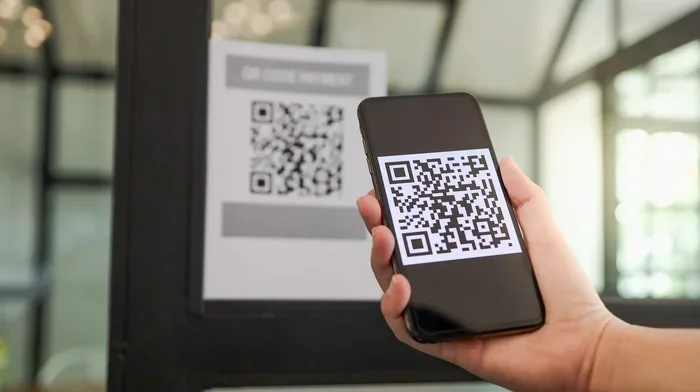
The Wix QR Code Generator is a built-in tool inside the Wix website builder that lets you create QR codes without leaving your editor. A QR code is a square barcode that people scan with their phone camera to open a link, see details, or take action. With the Wix QR Code Generator, you can make these codes in seconds and add them directly to any page on your site.
Unlike third-party QR code tools that require you to leave your site, download files, and re-upload them, the Wix QR Code Generator keeps everything in one place. You design, preview, and publish all within the same Wix editor. This means fewer steps, less hassle, and a smoother workflow for building your site.
The tool supports both static QR codes and dynamic QR codes. Static codes link to a fixed URL that cannot be changed once created. Dynamic codes let you update the destination link later without changing the code itself. This flexibility makes the Wix QR Code Generator useful for both quick projects and long-term marketing campaigns.
You do not need any coding experience or design skills to use it. The interface is simple and visual, so anyone can create a professional-looking QR code in minutes. Whether you are new to Wix or have been building sites for years, this tool fits right into your workflow.
How to Create a QR Code with Wix
Creating a QR code with the Wix QR Code Generator is straightforward and takes less than a minute. Here is the step-by-step process you will follow inside your Wix editor:
First, open your Wix site in the editor. Click on the page where you want to add the QR code. Then go to the Add menu on the left side of the screen and look for the QR Code element. Click on it to add a blank QR code placeholder to your page.
Next, click on the QR code to open the settings panel. You will see options to enter the URL or content you want the code to link to. Paste your link, email address, phone number, or any text you want people to see when they scan the code.
After you enter your content, you can customize the design. Change the colors to match your brand, add a logo in the center, or adjust the shape of the code dots. The Wix QR Code Generator gives you real-time previews so you can see exactly how your code will look before publishing.
Once you are happy with the design, click Publish or Save. Your QR code is now live on your site. You can also download it as an image file if you want to use it on social media, printed materials, or other platforms outside of Wix.
Quick Tips for First-Time Users
- Always test your QR code with your phone before publishing.
- Make sure the code is at least 2×2 inches on screen for easy scanning.
- Keep the linked URL short and relevant to what the code promises.
- Use high-contrast colors (dark on light) for the best scan results.
- Add a short call-to-action near the code so people know what to do.
Types of QR Codes You Can Make
The Wix QR Code Generator gives you access to two main types of QR codes. Each type serves a different purpose and offers different benefits for your website.
Static QR Codes
A static QR code links to a fixed URL that cannot be changed after creation. This type is perfect for content that will not change, such as your contact page, social media profiles, or a permanent landing page. Static codes are simple to make and work reliably every time someone scans them.
The advantage of static QR codes is that they do not require an internet connection to display the content if the data is embedded directly. They are also faster to generate since there is no server-side redirect involved. However, once you publish a static code, you cannot change where it leads without creating a new one.
If you are linking to a specific product page or a one-time promotion, a static QR code works great. For example, if you sell equipment and want to direct people to your page about what kind of generator do I need, a static code on your printed flyers will always lead to that exact page.
Dynamic QR Codes
Dynamic QR codes are more flexible because you can change the destination URL after publishing. The QR code image stays the same, but the link it points to can be updated anytime through your Wix dashboard. This is incredibly useful for ongoing campaigns, seasonal promotions, or content that changes frequently.
Dynamic codes also give you access to scan analytics. You can see how many times your code was scanned, where the scans came from, and what devices people used. This data helps you understand your audience better and improve your marketing efforts over time.
One thing to keep in mind is that dynamic QR codes require a small amount of server-side redirection. This means there is a tiny delay when someone scans the code. For most uses, this delay is unnoticeable and does not affect the user experience.
Best Uses for QR Codes on Your Wix Site
QR codes are versatile tools that work for many different types of businesses and websites. The Wix QR Code Generator makes it easy to add codes wherever they make sense for your audience. Here are some of the best ways to use QR codes on your Wix site.
QR Codes for Restaurants and Menus
If you run a restaurant, QR codes for menus are a game-changer. Instead of printing and replacing physical menus, you can put a single QR code on each table. When customers scan it, they see your full menu on their phone. You can update prices, add seasonal items, or change the layout anytime without reprinting anything.
The Wix QR Code Generator lets you link directly to your Wix restaurant menu page. You can also create separate codes for appetizers, main courses, and drinks if you want to organize the experience. This approach saves money on printing and makes it easy to keep your menu current.
QR Codes for Marketing and Promotions
Marketing campaigns benefit a lot from QR codes. You can create a QR code for marketing that links to a special landing page, a discount code, or a product launch page. Put the code on your social media posts, email newsletters, business cards, or event banners.
With dynamic QR codes, you can run multiple campaigns using the same code image. Simply update the destination link when you want to promote a new product or offer. This saves you from reprinting materials and gives you the flexibility to pivot your strategy quickly.
You can also track which campaigns perform best by using different dynamic codes for each one. The scan data tells you which channels drive the most engagement, so you can focus your efforts where they matter most.
QR Codes for Contact and Location
Adding a QR code that opens your contact page or maps directly to your business location is a smart move. Customers can scan the code and instantly see your address, phone number, email, and hours of operation. Some people prefer scanning a code over typing a URL into their browser, so this removes a friction point.
If you have a physical store or office, you can place a QR code on your window or door that links to directions or a booking page. This is especially useful for service businesses like consultants, salons, or repair shops.
QR Codes for Portfolios and Galleries
Creatives like photographers, designers, and artists can use QR codes to showcase their work. Link a code to your portfolio gallery or a specific project page. You can print the code on your business cards, resume, or event materials so people can instantly view your work on their phones.
The Wix QR Code Generator makes it easy to create codes for multiple projects. You can have one code for your full portfolio and individual codes for each featured piece. This gives your audience flexibility in how they explore your work.
Tips for Designing Effective QR Codes
A QR code that looks good and works well can make a big difference in how people interact with it. The Wix QR Code Generator gives you design controls, but knowing how to use them makes a real difference. Here are some practical tips to keep in mind.
Keep it scannable. While it is tempting to add lots of design elements, too many changes can make a code hard to scan. Always keep the three large squares in the corners visible and clear. These are the alignment markers that phone cameras use to read the code.
Match your brand colors. Use your brand colors for the QR code dots and background. This helps the code feel like a natural part of your site design rather than a generic add-on. Just make sure there is enough contrast between the code and the background for easy scanning.
Add a logo in the center. The Wix QR Code Generator lets you place your logo or brand mark in the middle of the code. This not only looks professional but also reinforces your brand every time someone scans the code. Just keep the logo small enough that it does not cover too much of the code data.
Test on multiple devices. Before you publish, scan your code with different phones and cameras. Some older devices or budget phones struggle with heavily styled codes. If it works on a range of devices, you are good to go.
Place codes where they are easy to reach. Put QR codes at eye level on web pages, in prominent positions on printed materials, and somewhere people will naturally notice them. A code hidden at the bottom of a page or buried in a footer will get ignored.
Common Mistakes to Avoid
- Using colors with low contrast that make the code unreadable.
- Making the QR code too small for printed materials.
- Linking to a page that is slow to load or not mobile-friendly.
- Forgetting to add a brief instruction about what happens when scanned.
- Using a static code for content you plan to change later.
Wix QR Code Generator vs. Other Tools
There are many QR code generators available online, so it is worth understanding what sets the Wix QR Code Generator apart. Here is a quick comparison of what makes this tool stand out.
| Feature | Wix QR Code Generator | Third-Party QR Tools |
|---|---|---|
| Built into site editor | Yes | No |
| Custom branding options | Yes | Varies |
| Dynamic QR code support | Yes | Often paid |
| Scan analytics | Yes | Often paid |
| Free to use | Yes | Limited free tier |
| No file downloads needed | Yes | Usually required |
| Direct Wix page linking | Yes | Manual process |
The biggest advantage of using the Wix QR Code Generator is convenience. Everything stays inside your site. You do not need to create an account on a separate platform, download image files, or upload them back to your Wix editor. The entire process happens in one place, which saves time and reduces errors.
Another advantage is that your QR codes are hosted on your Wix site. This means they load quickly and are always available as long as your site is live. With external QR tools, there is always a small risk that the service might go down or change its terms, which could break your codes.
If you are already using Wix to build your website, the built-in QR code generator is the most natural choice. It integrates seamlessly with your pages, follows your site’s design system, and works alongside all your other Wix features like Wix Stores, Wix Blog, and Wix Bookings.
Final Thoughts
The Wix QR Code Generator is a simple yet powerful tool that every Wix site owner should take advantage of. It removes the need for external QR code services and keeps everything inside your familiar Wix editor. Whether you need codes for menus, marketing campaigns, contact pages, or portfolios, the tool makes the process fast and easy.
With both static and dynamic options, full design customization, and built-in scan tracking, you get everything you need in one place. You can create codes that look great, work reliably, and help you connect with your audience in new ways.
If you are building a site for a generator equipment business and want to link to your guide on how much does a home generator cost, or you need a code that leads to your wiring instructions on how to wire a generator to a breaker box, the Wix QR Code Generator handles it all with ease. The tool is free, fast, and ready to use the moment you open your Wix editor.
Start creating your QR codes today and see how quickly you can add this useful feature to your Wix site. A well-placed QR code can improve user experience, drive more traffic to your pages, and make your site feel more modern and interactive.
Frequently Asked Questions
Is the Wix QR Code Generator free to use?
Yes, the Wix QR Code Generator is completely free for all Wix site owners. You can create unlimited QR codes at no extra cost. There are no premium tiers or hidden fees for using this built-in tool within the Wix editor.
Can I customize the colors and design of my QR code?
Absolutely. The Wix QR Code Generator lets you change the colors of your code dots and background, add a logo in the center, and adjust the shape of the dots. You can preview your design in real time before publishing it to your site.
What is the difference between a static and dynamic QR code?
A static QR code links to a fixed URL that you cannot change after creating it. A dynamic QR code lets you update the destination link anytime without changing the code image. Dynamic codes also provide scan analytics so you can track how many people scan your code.
Can I track how many people scan my QR code?
Yes, if you use a dynamic QR code, you can access scan analytics directly in your Wix dashboard. You will see the total number of scans, the location of scanners, and the types of devices they used. This data helps you measure the effectiveness of your QR code campaigns.
Do I need a Wix site to use the QR code generator?
Yes, the Wix QR Code Generator is built into the Wix editor and is only available to Wix site owners. If you do not have a Wix site, you can still create QR codes using Wix’s free plan, but the generator is designed to work seamlessly within the Wix ecosystem.
Can I use QR codes for e-commerce on Wix?
Yes, you can use QR codes to link to product pages, special offers, or checkout pages on your Wix Store. This is a great way to bridge your online and offline marketing. Just make sure the linked page loads quickly and is optimized for mobile viewing.