Excel Random Number Generator The Simple Way to Start
The Excel random number generator is one of the handiest tools you can add to your spreadsheet toolkit. Whether you need random integers, decimal numbers, or a full list of randomized values, Excel has built-in functions that make it incredibly easy. This guide walks you through every method, from basic formulas to advanced techniques, so you can start generating random numbers in Excel right away.
If you have ever needed to pick a random winner, run a simulation, or just shuffle some data, the Excel random number generator is your best friend. Excel makes it surprisingly simple to generate random numbers, and you do not need to be a spreadsheet expert to get started. In this guide, we will walk you through every method, from the simplest formula to more advanced techniques. By the end, you will know exactly how to use the Excel random number generator for any project.
Random numbers play a big role in many tasks. Teachers use them to randomize student lists. Businesses use them for sampling and surveys. Gamers and developers use them for procedural content. No matter your reason, Excel has you covered. Let us dive in and explore how to make the most of this powerful feature.
Key Takeaways
- RAND and RANDBETWEEN are the two core functions you need to generate random numbers in Excel quickly.
- RANDARRAY is the newest and most powerful function for creating arrays of random numbers in one step.
- You can lock random numbers so they don’t change by copying and pasting them as values.
- VBA macros offer advanced control for custom random number generation in Excel.
- Avoiding duplicates and setting ranges is straightforward with the right formulas and techniques.
- Random number generation has real-world uses like sampling, simulations, and game design.
📑 Table of Contents
- What Is an Excel Random Number Generator?
- The Core Functions: RAND and RANDBETWEEN
- How to Generate a List of Random Numbers
- The New RANDARRAY Function: A Game Changer
- Locking Your Random Numbers in Place
- Common Mistakes and How to Avoid Them
- Real-World Uses for the Excel Random Number Generator
- Quick Tips for Mastering the Excel Random Number Generator
- Conclusion
What Is an Excel Random Number Generator?
A random number generator in Excel is a tool or function that produces numbers without any predictable pattern. Excel offers several built-in functions designed specifically for this purpose. You do not need to download anything or install any add-ins. Everything is built right into the program.
The beauty of using Excel for this task is that it is fast, free, and available on almost every computer. You can generate a single random number or thousands of them in seconds. The Excel random number generator adapts to whatever you need, whether it is a simple list or a complex simulation.
Why Use Excel for Random Number Generation?
You might wonder why you should use Excel instead of a dedicated random number tool. Here are a few reasons that make Excel a great choice:
- It is already on your computer. Most people have Excel installed, so there is no extra software to download.
- It integrates with your data. You can generate random numbers right next to your existing spreadsheet data.
- It is easy to customize. You can set ranges, control decimal places, and adjust formulas with just a few clicks.
- It is repeatable. You can refresh your random numbers anytime by pressing a simple key.
- It handles large datasets. Excel can generate thousands of random numbers without slowing down.
Compared to standalone random number tools, Excel gives you more flexibility. You can combine random numbers with other formulas, charts, and data analysis tools. This makes it a powerhouse for anyone who works with spreadsheets regularly.
The Core Functions: RAND and RANDBETWEEN
Every Excel random number generator journey starts with two essential functions: RAND and RANDBETWEEN. These two formulas handle the vast majority of random number needs. Let us look at each one in detail.
Using the RAND Function
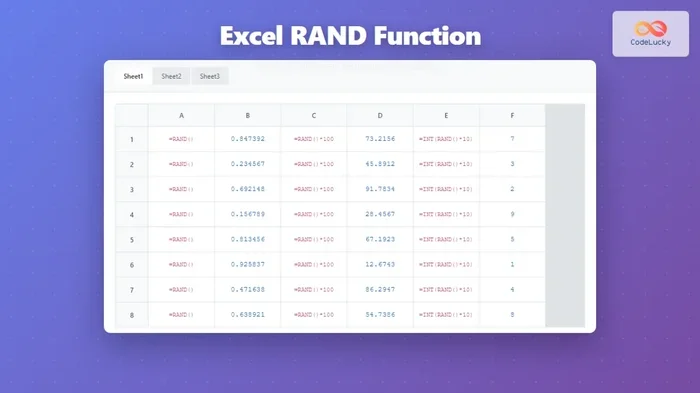
The RAND function generates a random decimal number between 0 and 1. It is the simplest way to get started. To use it, type the following into any cell:
=RAND()
That is it. One line, and you have a random decimal number. Every time you press Enter or make a change to the spreadsheet, the number may update. This is because RAND recalculates automatically with every worksheet change.
If you need a random number within a specific range, you can modify the formula. For example, to get a random number between 10 and 50, you would use:
=RAND()(50-10)+10
This formula multiplies the random decimal by the range size and then shifts it to start at your minimum value. It is a simple trick that opens up a lot of possibilities for your random number generation in spreadsheets.
Using the RANDBETWEEN Function
The RANDBETWEEN function is perfect when you need whole numbers, also known as integers. Instead of getting decimals, you get clean, whole random numbers. The syntax is straightforward:
=RANDBETWEEN(bottom, top)
For example, if you want a random integer between 1 and 100, you would type:
=RANDBETWEEN(1, 100)
Just like RAND, RANDBETWEEN recalculates every time the worksheet changes. This means your numbers will keep shifting unless you lock them in place. We will cover how to do that in a later section.
One great thing about RANDBETWEEN is that you can use it for negative numbers too. Want a random integer between -50 and 50? Just type =RANDBETWEEN(-50, 50). The Excel random number generator handles negative ranges with ease.
How to Generate a List of Random Numbers
Sometimes you need more than one random number. Maybe you are picking winners from a list or creating a randomized dataset for testing. Excel makes this process quick and painless.
Generating Multiple Random Numbers at Once
The fastest way to generate multiple random numbers is to drag the fill handle. Here is how it works:
- Type your RAND or RANDBETWEEN formula in the first cell.
- Click on that cell to select it.
- Look for the small square at the bottom-right corner of the cell. This is the fill handle.
- Click and drag the fill handle down through the rows you need.
- Release the mouse button, and Excel fills each cell with a new random number.
This method works beautifully for creating a random number list in seconds. You can generate 10 numbers or 10,000 numbers using the same technique. The Excel random number generator scales effortlessly to whatever size you need.
Creating a Random Number Without Duplicates
Sometimes you need unique random numbers with no repeats. Excel does not have a built-in function for this directly, but there is a clever workaround. Here is one approach:
- First, create a list of sequential numbers using the Fill Handle or a formula.
- Next, add a RAND function next to each number in a helper column.
- Then, sort the list by the RAND column.
- The result is a shuffled, randomized list with no duplicates.
This technique is especially useful for things like random drawing simulations or creating randomized test groups. It is a simple trick that gives you full control over your random number generation in spreadsheets.
The New RANDARRAY Function: A Game Changer
Microsoft introduced the RANDARRAY function in newer versions of Excel, and it has changed the game for random number generation. Unlike RAND and RANDBETWEEN, which produce one number at a time, RANDARRAY can generate an entire array of random numbers in a single formula.
How RANDARRAY Works
The syntax for RANDARRAY looks like this:
=RANDARRAY(rows, columns, min, max, whole_number)
Let us break down each argument:
- rows: The number of rows you want in your output.
- columns: The number of columns you want in your output.
- min: The smallest number in your range (optional, defaults to 0).
- max: The largest number in your range (optional, defaults to 1).
- whole_number: TRUE for integers, FALSE for decimals (optional, defaults to FALSE).
Here is an example. If you want a 5-by-3 grid of random integers between 1 and 50, you would type:
=RANDARRAY(5, 3, 1, 50, TRUE)
That single formula gives you 15 random numbers arranged in a neat grid. This is incredibly powerful for anyone who needs to generate large datasets quickly. The Excel random number generator has never been this efficient.
When to Use RANDARRAY vs. RANDBETWEEN
RANDARRAY is ideal when you need many numbers at once or when you want them arranged in a specific grid layout. RANDBETWEEN is better when you only need a single number or when you are working with older versions of Excel that do not support RANDARRAY. Both tools are valuable, and knowing when to use each one makes you more effective with the Excel random number generator.
Locking Your Random Numbers in Place
One of the biggest frustrations with random number functions is that they keep changing every time you edit the spreadsheet. If you need your numbers to stay put, you have a few options.
Method 1: Copy and Paste as Values
This is the simplest and most common method:
- Select the cells containing your random numbers.
- Press Ctrl+C to copy them.
- Right-click on the same area and choose Paste Special.
- Select Values and click OK.
Your random numbers are now frozen in place. They will no longer change when you edit other cells. This is essential when you need stable data for analysis or presentation.
Method 2: Using VBA to Generate Static Numbers
For more advanced users, VBA (Visual Basic for Applications) offers another way to lock in random numbers. You can write a short macro that generates numbers and pastes them as values automatically. This approach is especially useful if you generate random numbers frequently and want a one-click solution.
Here is a simple VBA snippet you can use:
Sub GenerateStaticRandom()
Dim cell As Range
For Each cell In Selection
cell.Value = Int(Rnd() 100) + 1
Next cell
End Sub
This macro fills your selected cells with random integers between 1 and 100, and since the values are set directly, they do not change on recalculation. The Excel random number generator becomes even more powerful when you combine it with VBA automation.
Common Mistakes and How to Avoid Them
Even though the Excel random number generator is easy to use, there are a few common mistakes that trip people up. Knowing these pitfalls helps you work smarter and avoid frustration.
Forgetting to Lock Your Numbers
The most common mistake is forgetting to paste random numbers as values. If you build a report or analysis based on random numbers and then the numbers shift, your entire output changes. Always lock your numbers when you need them to stay fixed.
Using the Wrong Range in RANDBETWEEN
Another mistake is mixing up the bottom and top values in RANDBETWEEN. The first number should always be the smaller value, and the second should be the larger value. If you reverse them, Excel will return an error.
Not Understanding Recalculation Behavior
Excel recalculates formulas automatically by default. This means your random numbers will keep changing until you lock them. If you are working on a presentation or sharing a file with others, make sure your numbers are stable before you send them out.
Overlooking the RANDARRAY Function
Many users stick with RAND and RANDBETWEEN and never explore RANDARRAY. If you are using a newer version of Excel, take the time to learn RANDARRAY. It can save you significant time and effort, especially for large-scale random number tasks.
Real-World Uses for the Excel Random Number Generator
The Excel random number generator is not just a fun toy. It has practical applications in many areas of work and life. Here are some real-world examples where random numbers in Excel come in handy.
1. Random Sampling for Surveys
If you need to select a random sample from a larger dataset, the Excel random number generator makes it easy. Add a RAND column next to your data, sort by it, and pick the top rows. This gives you a truly random subset for analysis or survey distribution.
2. Simulation and Modeling
Business analysts and students use random numbers to run simulations. Whether you are modeling customer behavior, testing financial scenarios, or running a Monte Carlo simulation, Excel’s random number tools provide the foundation you need.
3. Game Design and Education
Teachers use random numbers to create randomized quizzes and seating charts. Game designers use them for procedural generation and probability testing. The Excel random number generator serves both casual and professional needs with equal ease.
4. Data Testing and Quality Assurance
Software testers often need large datasets with randomized values to test applications. Excel can generate thousands of random test data points in seconds, making it an invaluable tool for quality assurance teams.
Quick Tips for Mastering the Excel Random Number Generator
Here are some quick tips to help you get even more out of the Excel random number generator:
- Press F9 to recalculate all random numbers at once. This is the fastest way to refresh your data.
- Use named ranges for your min and max values so your formulas are easier to read and update.
- Combine RAND with other functions like INDEX and MATCH to pick random items from a list.
- Set Excel to manual calculation mode if you want full control over when your random numbers update.
- Use conditional formatting to highlight random numbers that meet specific criteria.
- Save your favorite formulas in a template so you can reuse them for future projects.
These small tips add up to big efficiency gains. Once you build them into your workflow, you will wonder how you ever managed without them.
Conclusion
The Excel random number generator is one of the most useful and underrated features in the entire spreadsheet application. From the simple RAND function to the powerful RANDARRAY, Excel gives you everything you need to generate random numbers quickly and easily. Whether you are a student, a teacher, a business analyst, or just someone who needs to pick a random winner, these tools have you covered.
Remember to lock your numbers when you need them to stay put, explore RANDARRAY for bulk generation, and avoid the common mistakes we discussed. With a little practice, you will be generating random numbers in Excel like a seasoned pro. The Excel random number generator is waiting for you, and it is simpler than you think.
Frequently Asked Questions
How do I generate a random number between two specific values in Excel?
Use the RANDBETWEEN function with the syntax =RANDBETWEEN(bottom, top). For example, =RANDBETWEEN(10, 50) generates a random integer between 10 and 50. You can also use =RAND()*(max-min)+min for decimal numbers within a range.
Why do my random numbers keep changing in Excel?
Excel recalculates all formulas automatically by default. This means RAND and RANDBETWEEN generate new numbers every time you edit the sheet. To stop this, copy your random numbers and paste them as values using Paste Special.
Can I generate random numbers without duplicates in Excel?
Yes, you can. One method is to add a RAND function next to your sequential numbers, then sort by the RAND column. This shuffles your list and ensures no duplicates. Another option is to use the RANDARRAY function with a helper column for deduplication.
What is the RANDARRAY function and when should I use it?
RANDARRAY is a newer Excel function that generates an array of random numbers in one formula. Use it when you need multiple random numbers at once, especially in a grid layout. It is available in Microsoft 365 and Excel 2021 and later versions.
Can I use VBA to create a custom random number generator in Excel?
Yes, VBA allows you to write macros that generate random numbers with custom logic. You can set ranges, control duplicates, and automate the process with a single button click. This is ideal for repetitive tasks that require consistent random number generation.
Is the Excel random number generator truly random?
Excel uses a pseudorandom number algorithm, which means the numbers appear random but are generated by a deterministic process. For most everyday uses like sampling, simulations, and games, the results are effectively random and perfectly suitable.