QR Code Generator for Google Forms Made Easy for Everyone
A QR code generator for Google Forms lets you turn any form into a scannable code in seconds. It makes collecting responses easy for events, surveys, and businesses. This guide shows you the best tools, simple steps, and pro tips to get started fast.
Key Takeaways
- Easy Setup: Creating a QR code for Google Forms takes less than five minutes with the right tool.
- Free Options Available: You can start with free QR code makers that work great for basic forms.
- Dynamic vs Static: Dynamic QR codes let you update your form link without reprinting the code.
- Better Response Rates: QR codes make it simple for people to open forms on their phones instantly.
- Trackable Results: Many QR code generators offer scan tracking and analytics built in.
- Design Matters: A well-placed, properly sized QR code gets scanned more often than a tiny or blurry one.
- Avoid Common Errors: Always test your QR code before printing or sharing it widely.
📑 Table of Contents
What Is a QR Code Generator for Google Forms
A QR code generator for Google Forms is a simple tool that creates a scannable image from your form link. When someone points their phone camera at the code, it opens your Google Form right away. You do not need to type any URL or search for your form. One scan and you are there.
QR codes have been around for a long time, but they have become super popular in recent years. Schools use them for attendance. Companies use them for surveys. Event organizers use them for check-ins. The reason is simple: they remove friction. People do not want to type long links into their phones. A quick scan solves that problem completely.
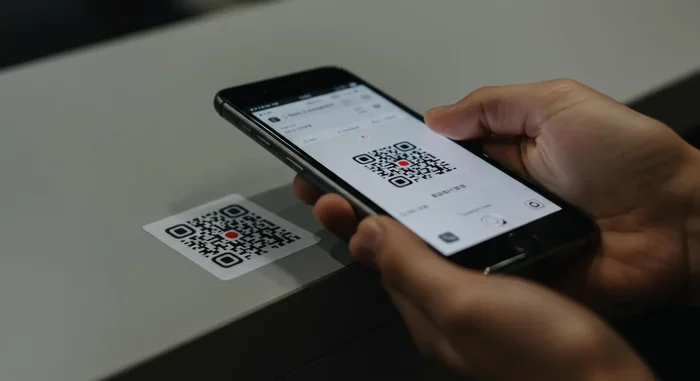
The way it works is straightforward. You take the link to your Google Form. You paste it into a QR code generator tool. The tool creates a unique image made of black and white squares. That image is your QR code. You can print it, share it on screen, or put it on a poster. Anyone with a smartphone can scan it in under two seconds.
Not all QR code generators are the same. Some are free. Some cost money. Some let you track scans. Others just give you a basic image. The best one for you depends on what you need. If you are running a one-time event, a free tool might be all you need. If you are running ongoing surveys, you might want a tool with tracking features.
Using a QR code for Google Forms is one of the easiest ways to make your forms more accessible. It works for people of all ages. It works on all phones. And it saves everyone time. Let us look at why this small change can make a big difference.
How QR Codes Work with Google Forms
Google Forms gives you a shareable link every time you create a form. That link is just a web address. A QR code generator takes that web address and turns it into a visual code. The code stores the same link inside its pattern of squares.
When a phone camera reads the code, it decodes the information. Then it opens the link in a browser. From there, the person sees your Google Form. They fill it out and submit it. The whole process takes just a few seconds.
You can also use a QR code link that redirects to your form. This means you can change where the code leads without making a new QR code. That is a huge time-saver if you need to update your form later.
Why QR Codes Are Perfect for Forms
QR codes are perfect for forms because they remove every barrier between the user and the form. There is no typing. There is no searching. There is no guessing. The person just scans and fills out. This is why schools, businesses, and event planners love using them.
They also work offline in a sense. The QR code itself is just an image. You do not need Wi-Fi to display it. The person scanning it does need internet to open the form, but the code itself is always ready to go.
Benefits of Using a QR Code for Google Forms
Using a QR code generator for Google Forms brings many real-world benefits. Let us break them down so you can see exactly why this is worth your time.
Faster Data Collection
When people can scan a form instead of typing a link, they respond faster. At events, this means shorter lines. In classrooms, this means quicker participation. In offices, this means faster feedback collection. The speed adds up fast, especially with large groups.
Think about a school parent-teacher night. Instead of handing out paper sheets or asking parents to type a long URL, you put a QR code for surveys on a table. Parents scan it, fill out the form, and move on. Done in under thirty seconds per person.
Better User Experience
A good user experience means people actually complete your form. If the process is smooth, more people will finish it. QR codes make the experience smooth. There is no friction. No confusion. No frustration.
This is especially true for mobile users. Over half of all web traffic now comes from phones. A QR code opens the form directly in the phone browser. It adjusts to the screen size automatically. The person sees a mobile-friendly form right away, with no zooming or scrolling needed.
Cost and Time Savings
Printing QR codes is cheap. A single sheet of paper can hold dozens of codes. You do not need expensive software or special printers. Just create the code, print it, and go. Compare this to buying physical forms, hiring staff to hand them out, and then entering data manually.
The time savings are huge too. Instead of collecting paper forms and typing data into a spreadsheet, responses go straight into Google Forms. They are organized, searchable, and ready to analyze. This alone can save hours of work every week.
When you are planning an outdoor event, your setup needs may go beyond just digital tools. For example, if you are running power for devices at a check-in station, you need to know what kind of generator do I need to keep everything running smoothly. Similarly, budgeting for your full event setup means understanding costs across all tools. Knowing how much is a generator for a 2 helps you plan your total event expenses better.
Professional and Clean Appearance
A QR code looks clean and professional on a poster, a screen, or a handout. It gives your form a modern feel. People trust QR codes because they use them every day. They see them on restaurant menus, event tickets, and product packaging. When your form has a QR code, it feels familiar and easy.
You can also create a custom QR code with your brand colors or logo. This makes it look even more professional and on-brand. Many QR code generators let you customize the design without losing the scannable function.
How to Create a QR Code for Your Google Form
Creating a QR code for your Google Form is simple. You do not need any technical skills. Follow these steps and you will have your code ready in minutes.
Step-by-Step Process
- Open your Google Form. Make sure the form is live and accepting responses.
- Click the Send button. This is in the top right corner of the form editor.
- Copy the form link. Click the link icon to copy the URL to your clipboard.
- Go to a QR code generator. You can use a free online tool or a paid service.
- Paste the link into the generator. Most tools have a simple box where you paste the URL.
- Generate the QR code. Click the button and wait a few seconds.
- Download the image. Save it as a PNG or SVG file for best quality.
- Test the code. Scan it with your phone to make sure it opens the right form.
That is it. Eight simple steps. You can repeat this process for as many forms as you need. Each form gets its own unique QR code.
Choosing Between Static and Dynamic QR Codes
Not all QR codes are the same. There are two main types: static and dynamic. Understanding the difference helps you choose the right one for your needs.
A static QR code is permanent. The link is baked right into the image. If you ever need to change the form link, you must create a brand new QR code. Static codes are great for one-time events or printed materials that will not change.
A dynamic QR code is more flexible. It uses a short redirect link that you can update anytime. You change the destination in your QR code dashboard, and the same QR code now leads to the new form. This saves you from reprinting everything. Dynamic codes are ideal for ongoing surveys or forms that might change.
Most free QR code generators only offer static codes. If you need dynamic codes with tracking, you may need to use a paid service. But for many users, a static code works perfectly fine.
When setting up a technical station at an event, proper cable and power management matters just as much as your digital setup. Knowing how to wire a generator to a breaker box ensures your power setup is safe and functional, so your QR code stations stay up and running all day.
Best QR Code Generators for Google Forms
There are many tools out there that claim to be the best. But not all of them deliver. Here are some of the top options you can try right now.
Free Options to Try
- QR Code Generator by Google: Google itself offers a simple QR code feature in Chrome. Just right-click any page and select “Create QR Code.” It works great for Google Forms.
- QRCode Monkey: This free tool lets you create custom QR codes with colors and logos. It supports dynamic codes on paid plans and static codes for free.
- GoQR.me: A very simple and clean tool. You paste your link, click generate, and download. No sign-up required.
- Beaconstac Free QR Generator: Offers free static codes with decent customization options.
All of these free tools work well for basic needs. If you just need a quick code for a single form, any of them will do the job. The key is to test your code after generating it. Make sure it scans cleanly on different phones.
Premium Tools Worth Paying For
- QR Code Generator PRO: Offers dynamic codes, scan tracking, and analytics. Great for businesses that need data on how many people scan their codes.
- Unitag QR Code Generator: Provides advanced design options and detailed scan reports. Good for marketing campaigns.
- Scanova: Offers bulk QR code generation and API access. Ideal for large organizations running many forms at once.
Premium tools are worth it if you run regular campaigns or need detailed scan data. The extra cost pays for itself in saved time and better insights.
Tips to Make Your QR Codes Work Better
A QR code is only useful if people can actually scan it. Here are some practical tips to make sure your codes work their best.
Design and Placement Tips
- Make the code big enough. At minimum, print it at 2 by 2 inches. Larger is better for posters and banners.
- Place it in a high-traffic area. Put it where people naturally look. Near entrances, on tables, or at the front of a room.
- Add a call to action. Put text near the code like “Scan to Fill Out the Form.” This tells people exactly what to do.
- Keep contrast high. Black code on a white background works best. Avoid low-contrast colors that make scanning harder.
- Do not put it on curved surfaces. Curves can distort the code and make it unreadable.
Testing Your QR Code
Always test your QR code before sharing it. Use at least two different phones to scan it. Try it in different lighting conditions. Make sure it opens the correct form every time.
If you are printing QR codes on flyers or posters, print a test copy first. Scan the printed version, not just the screen version. Print quality can affect how well a code reads.
Keep Your Form Link Stable
Make sure your Google Form link does not change. If you edit the form, the link usually stays the same. But if you copy the link again after making changes, it might be different. Always double-check that your QR code points to the live form.
Common Mistakes People Make with QR Codes
Even though QR codes are simple, people still make avoidable mistakes. Here are the ones to watch out for.
Making the Code Too Small
A tiny QR code is hard to scan. If you put a small code on a flyer or a screen, people will struggle. Always size your code large enough. A good rule of thumb is at least 1 by 1 inch on a screen and 2 by 2 inches on paper.
Forgetting to Test
This is the most common mistake. People generate a code, print it, and walk away. Then they find out it does not work. Always scan your own code before distributing it. Test on both iPhone and Android devices.
Using a Broken or Expired Link
If your Google Form is deleted or the link changes, your QR code becomes useless. Check that your form is still live and accepting responses before you print codes. For dynamic codes, you can fix this easily by updating the link. But for static codes, you need to generate a whole new one.
Ignoring Analytics When Available
If your QR code generator offers scan tracking, use it. You can learn how many people scanned the code, when they scanned it, and what device they used. This data helps you improve your forms and events over time.
Overcomplicating the Design
You can customize QR codes with colors and logos. But if you go too far, the code becomes unreadable. Keep the three large corner squares visible. Do not cover more than 20% of the code with design elements. If scanners cannot read it, the design is useless.
Not Providing an Alternative
Not everyone knows how to scan a QR code. Some people may not have a smartphone. Always provide an alternative way to access the form, like a short URL or a QR code app download link. This ensures no one is left out.
Frequently Asked Questions
Can I use a free QR code generator for Google Forms?
Yes, absolutely. Many free tools like QRCode Monkey and GoQR.me let you create QR codes for your Google Forms at no cost. Free options work great for most basic needs. You just paste your form link, generate the code, and download it.
Do I need an internet connection to scan a QR code?
The person scanning the code needs an internet connection to open the Google Form. The QR code itself is just an image and does not require Wi-Fi. However, without data or Wi-Fi, the phone cannot load the form after scanning.
Can I track how many people scan my QR code?
Yes, if you use a dynamic QR code with a generator that offers analytics. Tools like QR Code Generator PRO and Unitag provide scan tracking. You can see the number of scans, locations, and device types. Free static codes usually do not include tracking.
What is the difference between a static and dynamic QR code?
A static QR code has the form link built directly into the image. You cannot change it without making a new code. A dynamic QR code uses a redirect link that you can update anytime. Dynamic codes also offer scan tracking, while static codes do not.
Can I customize the design of my QR code?
Yes, many QR code generators let you change colors, add a logo, or adjust the style. Just be careful not to overdo it. The three corner squares must remain clear for scanners to read the code. Keep customization simple and test thoroughly.
Are QR codes for Google Forms safe to use?
Yes, QR codes are safe. They simply store a link to your Google Form. There is no risk of malware or viruses from a standard QR code. Just make sure you generate your code from a trusted tool and that your form link leads to the correct destination.
Conclusion
A QR code generator for Google Forms is one of the simplest and most effective tools you can use today. It makes your forms more accessible, faster to complete, and easier to share. Whether you are running a school event, collecting survey responses, or managing an office workflow, a QR code removes every barrier between the user and the form.
The process is quick. Pick a generator, paste your link, create the code, and test it. You can be up and running in under five minutes. And with free tools available, there is no reason not to try it.
Remember the key points: choose the right type of code for your needs, test before you share, and always provide a backup option for users who cannot scan. These small steps make a big difference in response rates and user satisfaction.
Start creating your QR code for Google Forms today. You will wonder how you ever managed without it. The ease, speed, and professionalism it adds to your forms is well worth the few minutes it takes to set up.