How to Open Dev Tools on Mac Unlock Hidden Features Fast
Opening dev tools on mac is quick and easy once you know the right shortcuts and menus. Whether you use Safari, Chrome, or Firefox, this guide shows you exactly how to access developer tools on your mac in seconds. You will also discover hidden features, essential shortcuts, and pro tips that make debugging and web development faster than ever.
Opening dev tools on mac is one of the simplest yet most powerful skills you can learn. Whether you are a beginner web developer or someone who just wants to peek behind the curtain of a website, developer tools give you superpowers. You can inspect elements, debug code, analyze network requests, and so much more. The best part? It only takes a few seconds to open them once you know how.
Many mac users struggle to find the right way to launch these tools. Unlike Windows, where the process is often straightforward, mac browsers sometimes hide these features behind menus or require a quick setup. This guide walks you through every method for every major browser. By the end, you will be able to open dev tools on mac without even thinking about it.
We also cover advanced tips, common mistakes, and hidden features that even experienced users sometimes miss. Think of this as your complete reference for everything related to developer tools mac. Let us dive in and unlock your browser’s full potential.
Key Takeaways
- Keyboard shortcuts are the fastest way to open dev tools on mac across all browsers.
- Safari requires a one-time setup in Preferences before you can access the Web Inspector.
- Chrome and Firefox offer multiple methods including menus, shortcuts, and right-click options.
- Dev tools include powerful features like element inspection, console logging, and network monitoring.
- Customizing your dev tools layout can boost your productivity as a mac developer.
- Mastering these shortcuts saves you significant time during web debugging and development.
📑 Table of Contents
What Are Dev Tools and Why Every Mac User Needs Them
Developer tools are built-in browser features that let you inspect, debug, and analyze websites. They are not just for programmers. Anyone who works with websites, designs pages, or simply wants to understand how a site works can benefit from them. On mac, these tools are hidden inside your browser but easy to access once you know where to look.
Here is what dev tools on mac can do for you:
- Inspect HTML and CSS – See the code behind any webpage element.
- Debug JavaScript – Find and fix errors in website scripts.
- Monitor Network Activity – Track how your browser loads resources.
- Test Responsive Design – Preview how sites look on different screen sizes.
- Analyze Performance – Identify what makes a website slow.
- Manage Cookies and Storage – View and edit site data stored on your mac.
These features make web development mac much more manageable. Even if you are not a developer, knowing how to use dev tools helps you troubleshoot issues, learn from other websites, and customize your browsing experience.
Why Mac Users Specifically Need to Know This
Mac browsers like Safari have unique settings that differ from other platforms. Safari, for example, hides the Web Inspector behind a preference menu that you must enable first. This trips up many mac users who expect to find dev tools the same way they would on a Windows PC. Once you learn the mac shortcut keys and menu paths, everything clicks into place.
How to Open Dev Tools on Mac in Safari
Safari is the default browser on mac, and it has excellent built-in developer tools. However, you need to enable the Developer menu first. This is a one-time setup that takes less than a minute. Once enabled, you can open Safari Web Inspector anytime using a simple shortcut.
Step-by-Step Setup for Safari Dev Tools
Follow these steps to activate developer tools in Safari on your mac:
- Open Safari on your mac.
- Click Safari in the top-left menu bar.
- Select Preferences (or Settings in newer macOS versions).
- Click on the Advanced tab.
- Check the box that says Show Develop menu in menu bar.
That is it. You now have access to the full suite of debugging tools mac users rely on. The Develop menu will appear in your menu bar, giving you quick access to Web Inspector, Error Console, and more.
Opening Dev Tools in Safari
Once the Developer menu is enabled, you have several ways to open dev tools:
- Keyboard Shortcut: Press Cmd + Option + I to instantly open the Web Inspector.
- Menu Method: Click Develop in the menu bar, then select Show Web Inspector.
- Right-Click Method: Right-click any element on a webpage and choose Inspect Element.
The keyboard shortcut is by far the fastest method. Once you memorize it, you will open dev tools on mac in Safari without even looking at the keyboard. It becomes second nature after just a few uses.
Much like how you need the right power source to keep your house running smoothly, you need the right setup to keep your workflow efficient. Enabling Safari’s developer menu is that essential first step.
How to Open Dev Tools on Mac in Chrome
Google Chrome is one of the most popular browsers for web development. It offers robust Chrome developer tools that are powerful and user-friendly. Opening dev tools in Chrome on mac is straightforward, and there are multiple methods to choose from.
Method 1: Keyboard Shortcut
The fastest way to open dev tools in Chrome on mac is:
- Press Cmd + Option + I simultaneously.
This instantly launches the Developer Tools panel. It works in Chrome on mac and is the same shortcut used in most other Chromium-based browsers. This shortcut is a lifesaver when you are in the middle of web debugging and need quick access.
Method 2: Using the Chrome Menu
If you prefer using menus, follow these steps:
- Click Chrome in the top menu bar.
- Hover over More Tools.
- Click Developer Tools.
This method is great if you are not comfortable with keyboard shortcuts yet. It also lets you see exactly where the option lives, which helps you remember it for next time.
Method 3: Right-Click Inspect
Another quick way to open dev tools on mac in Chrome is to right-click anywhere on a webpage. Select Inspect from the context menu. This opens the Elements panel directly, showing you the HTML and CSS for the element you clicked on. It is perfect for quick inspections without navigating through menus.
Just as a generator runs efficiently when you choose the right fuel, Chrome runs smoothly when you use the most efficient method for your workflow. The right-click method is often the most efficient way to open dev tools when you are focused on a specific element.
How to Open Dev Tools on Mac in Firefox
Mozilla Firefox also provides excellent developer tools for mac users. The process to open Firefox developer tools is slightly different from Chrome and Safari, but equally simple once you know the steps.
Opening Dev Tools in Firefox
Here are the three main ways to open dev tools in Firefox on mac:
- Keyboard Shortcut: Press Cmd + Option + I. This is the universal shortcut that works in most browsers on mac.
- Menu Method: Click Tools in the menu bar, then select Browser Tools, and choose Web Developer Tools.
- Right-Click Method: Right-click any element on a page and select Inspect Element.
Firefox also lets you access additional tools through the Web Developer menu if you have enabled it in the settings. This menu gives you access to style editors, console tools, and network analyzers.
One great thing about Firefox dev tools is that they can run for extended periods without slowing down your mac. Much like how a reliable generator can run for hours without issues, Firefox developer tools stay stable even during long debugging sessions.
Customizing Firefox Developer Tools
Firefox allows you to dock the developer tools panel to different sides of the screen. You can place it at the bottom, right, or left of the browser window. You can also detach it into a separate window if you need more screen space. These options make web development mac more comfortable and personalized to your workflow.
Essential Dev Tools Features You Should Know
Now that you know how to open dev tools on mac, let us explore the key features that make these tools so valuable. Each panel serves a specific purpose and can help you understand, debug, or improve any website.
Elements Panel
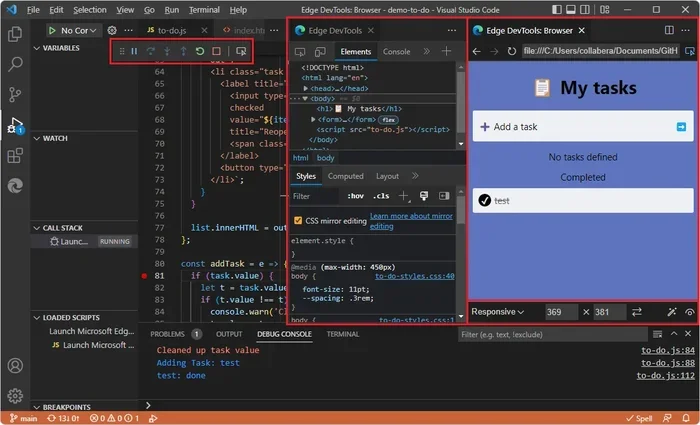
The Elements panel is the most commonly used feature in browser developer tools. It shows you the HTML structure of the current webpage. You can click on any element to see its CSS styles, modify them in real time, and instantly see the changes. This is incredibly useful for:
- Testing color changes without editing source code.
- Adjusting spacing and layout on the fly.
- Understanding how a website is structured.
Console Panel
The Console panel lets you run JavaScript commands and view error messages. When a website has a bug, the console often displays helpful error details. You can also use it to test small pieces of code or log messages for debugging purposes. It is one of the most powerful debugging tools mac developers use daily.
Network Panel
The Network panel tracks every request your browser makes while loading a page. You can see how long each resource takes to load, what size it is, and whether it loaded successfully. This panel is essential for troubleshooting website mac issues and optimizing page speed.
Sources Panel
The Sources panel lets you view and debug JavaScript files. You can set breakpoints, step through code line by line, and inspect variable values at any point. This is the go-to tool for anyone doing serious web debugging mac work.
Application Panel
The Application panel gives you access to cookies, local storage, session storage, and cached data. You can view and edit this information directly from dev tools. It is especially helpful when testing how a website handles user data or saved preferences.
Quick Tips for Mastering Dev Tools on Mac
Here are some practical tips to help you get the most out of dev tools on mac:
- Memorize the shortcut Cmd + Option + I. This single shortcut works in Safari, Chrome, and Firefox. It is the fastest way to open dev tools no matter which browser you use.
- Use Cmd + Shift + C for element selection. This shortcut lets you hover over any element on a page and instantly inspect it. It is like a magic wand for web inspection.
- Press Escape to toggle the drawer. When dev tools are open, pressing Escape hides or shows the bottom drawer panel. This gives you more space when you do not need the console or network tab.
- Use Cmd + F to search within dev tools. You can quickly find specific code, styles, or errors inside the developer tools panels.
- Right-click any element for quick access. This is the fastest way to jump straight to the Elements panel without opening the full dev tools first.
- Customize your workspace. Dock dev tools to the side or bottom depending on what you are working on. A side dock is great for coding, while a bottom dock works well for inspections.
These tips apply to all major browsers on mac. Once you build these habits, you will wonder how you ever worked without them. Opening dev tools mac becomes as natural as typing, and your productivity soars.
Common Mistakes to Avoid
Here are some common mistakes mac users make when working with dev tools:
- Forgetting to enable the Develop menu in Safari. Without this setting, you cannot access Web Inspector at all.
- Using the wrong keyboard shortcut. Cmd + Option + I works on mac, but Ctrl + Shift + I is for Windows. Make sure you use the mac version.
- Not clearing the cache when debugging. Sometimes old cached files interfere with your changes. Use the Network panel to disable cache while dev tools are open.
- Ignoring console errors. Those red error messages in the console are valuable clues. Always check them first when something is not working.
Avoiding these mistakes keeps your workflow smooth and your debugging sessions productive. Think of it like choosing the right fuel for your equipment. Using the correct mac shortcut keys ensures everything runs without wasted effort.
Conclusion
Opening dev tools on mac is a skill that pays dividends for anyone who works with websites. Whether you use Safari, Chrome, or Firefox, the methods in this guide give you multiple paths to access powerful debugging and development features. The keyboard shortcut Cmd + Option + I is your best friend, and the right-click inspect method is your quickest shortcut for targeted inspections.
Remember to enable the Developer menu in Safari if you have not done so already. Explore each panel in dev tools to discover features that match your needs. With practice, opening and using developer tools mac becomes second nature. Start experimenting today, and you will wonder how you ever built or debugged websites without them.
The world of web development mac is at your fingertips. All you need to do is open dev tools and start exploring.
Frequently Asked Questions
What is the fastest way to open dev tools on mac?
The fastest way is to use the keyboard shortcut Cmd + Option + I. This works in Safari, Chrome, and Firefox on mac. It opens developer tools instantly without navigating through any menus.
Why can’t I find dev tools in Safari on my mac?
Safari hides the Web Inspector by default. You need to go to Safari Preferences, click Advanced, and check “Show Develop menu in menu bar.” Once enabled, you can access dev tools through the Develop menu or use the keyboard shortcut.
Can I open dev tools on mac using a trackpad instead of a keyboard?
Yes, you can. Use the menu bar to navigate to the browser’s developer tools option. In Chrome, go to Chrome menu > More Tools > Developer Tools. In Safari, use the Develop menu after enabling it in Preferences.
Do dev tools work the same way across all browsers on mac?
The core features are similar across browsers, but each has its own unique tools and interface. Chrome dev tools are known for their performance profiling, Firefox has excellent style editor tools, and Safari’s Web Inspector integrates deeply with macOS.
Is it safe to use dev tools on mac?
Absolutely. Dev tools are built directly into your browser by the developer. They are safe to use and will not harm your mac. You can inspect, modify, and test websites without any risk to your system.
Can I open dev tools on mac to learn web development?
Yes, dev tools are excellent for learning web development. You can inspect any website’s code, see how CSS styles are applied, and experiment with changes in real time. It is one of the best free tools for beginners who want to understand how websites work.