Create Stunning QR Codes with Canva QR Code Generator
The Canva QR Code Generator lets you design beautiful, custom QR codes without any design experience. You can create scannable codes for your business, events, or marketing campaigns right inside the Canva platform. This guide walks you through every step, from setup to customization, so you can start using QR codes today.
QR codes are everywhere now. You see them on restaurant menus, store windows, event posters, and even business cards. They make it super easy for people to jump to a website, download an app, or view a menu with just a quick scan. And if you want to create your own, Canva QR Code Generator is one of the best tools out there.
Canva is already famous for making design simple. Whether you are creating social media posts, presentations, or flyers, Canva gives you everything you need in one place. Now, with the built-in QR code feature, you can design and generate custom QR codes without ever leaving the platform. It is fast, free, and incredibly easy to use.
In this guide, we will walk you through everything you need to know about using the Canva QR Code Generator. You will learn how to create QR codes from scratch, customize them to match your brand, and use them in smart ways that actually get scans. Whether you are a small business owner, a marketer, or someone just curious about QR codes, this article has you covered.
By the end of this guide, you will feel confident creating your own custom QR codes in Canva. You will know the best practices, the common mistakes to avoid, and how to make your QR codes look great and work even better. Let us dive in.
Key Takeaways
- Easy to Use: Canva makes creating QR codes simple, even for beginners with no design background.
- Fully Customizable: You can change colors, add logos, and match your brand style in just a few clicks.
- Free and Premium Options: Canva offers both free QR code features and premium templates for advanced users.
- Great for Marketing: QR codes created in Canva work perfectly for flyers, menus, business cards, and social media.
- Multiple Use Cases: From restaurants to events, Canva QR codes serve many different business needs.
- No Extra Software Needed: Everything is done inside Canva, so you don’t need third-party tools.
📑 Table of Contents
What Is Canva QR Code Generator?
The Canva QR Code Generator is a built-in tool inside Canva that lets you create QR codes directly on the Canva canvas. You do not need to sign up for a separate QR code service or download any extra software. Everything happens right inside your Canva workspace.
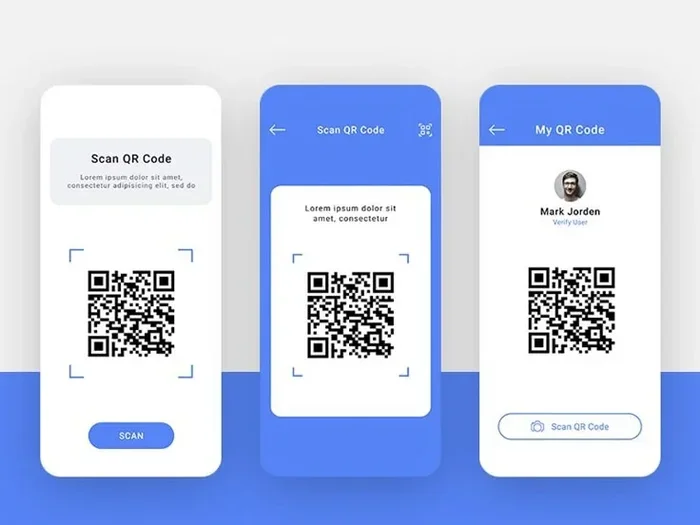
Canva QR codes work just like any other QR code. When someone scans them with their phone camera, they are taken to a link. That link can be a website, a social media profile, a PDF file, a menu, a contact card, or pretty much anything you can think of.
Why Use Canva for QR Codes?
You might wonder why you should use Canva instead of a dedicated QR code website. There are actually several great reasons:
- All-in-One Design: You can design the QR code and the surrounding graphics in the same place. No need to switch between tools.
- Brand Consistency: You can match your QR code to your brand colors, fonts, and style effortlessly.
- Free to Use: Canva offers a free QR code feature that works perfectly for most needs.
- Ready-to-Print Templates: Many Canva templates already include QR code placeholders, saving you time.
- No Technical Skills Required: The process is drag-and-drop simple. Anyone can do it.
Using Canva for your QR code design means you save time and keep everything looking professional. You do not need to be a graphic designer to create something that looks clean and polished.
How to Create a QR Code in Canva: Step by Step
Creating a QR code in Canva is straightforward. Here is exactly how to do it, step by step.
Step 1: Set Up Your Canva Account
First, go to Canva.com and sign up for a free account if you do not already have one. Canva works in your web browser and also has a mobile app, so you can create QR codes from your phone or computer. Once you are logged in, you are ready to go.
Step 2: Start a New Design
Click the “Create a Design” button on the Canva homepage. You can choose a custom size or pick a template that fits your needs. If you are making a QR code for a flyer, choose a flyer template. If it is for a business card, pick a business card size. This flexibility makes Canva a great QR code maker for any project.
Step 3: Add the QR Code Element
On the left side of the screen, you will see the “Elements” tab. Type “QR code” into the search bar. Canva will show you several QR code options. Click on the one you like, and it will appear on your canvas. You can resize it by dragging the corners.
Step 4: Link Your QR Code
Click on the QR code on your canvas. A toolbar will appear. Look for the option to add a link. Paste the URL you want people to visit when they scan the code. This could be your website, a Google Form, a menu page, or any other online destination.
Step 5: Customize and Download
Now comes the fun part. You can change the colors of your QR code to match your brand. You can add a logo in the center. You can also add text, borders, and other design elements around the QR code to make it look complete. When you are happy with how it looks, click “Download” and choose your file format. PNG works great for most uses.
That is it! You have just created a custom QR code using Canva. It really is that simple.
Customizing Your Canva QR Code for Maximum Impact
A plain black-and-white QR code works fine, but a customized QR code stands out and gets more scans. Canva gives you plenty of options to make your QR code look amazing.
Adding Brand Colors and Logos
One of the best things about using Canva is that you can match your QR code to your brand. Change the foreground color of the QR code to your brand color. For example, if your brand uses blue, make the QR code squares blue instead of black. This small change makes a big difference in how professional your design looks.
You can also add your logo to the center of the QR code. Just upload your logo image to Canva, place it over the center of the QR code, and resize it. Make sure the logo is not too big, or it might interfere with scanning. A small, centered logo works best.
Choosing the Right QR Code Type
Canva offers different styles of QR codes. You can choose between a static QR code and a dynamic QR code depending on your needs.
- Static QR Code: This links to a fixed URL. It cannot be changed after you create it. Static QR codes are simple and reliable.
- Dynamic QR Code: This lets you change the destination URL later without redesigning the code. Dynamic QR codes are great for marketing campaigns where you might want to update the link.
For most users, a static QR code is perfectly fine. But if you plan to run ongoing campaigns, a dynamic QR code gives you more flexibility.
Adding Design Elements Around the QR Code
Do not just place the QR code on a blank background. Use Canva’s design tools to add a frame, a background image, icons, and text that explain what the QR code does. For example, you might add the text “Scan to Visit Our Menu” below the code. This small touch can significantly increase scan rates.
Best Uses for Canva QR Codes
QR codes for business have become essential tools in modern marketing. Here are some of the best ways to use your Canva QR codes.
QR Codes for Marketing and Events
If you are running a QR code for event promotion, Canva makes it easy to design eye-catching posters and flyers. Add a QR code that links to your event registration page, ticket purchase site, or event details. People can scan the code with their phone and instantly sign up or learn more.
For marketing campaigns, you can create a series of QR codes that link to different landing pages. Use Canva to design each code with a consistent look, and distribute them across social media, print ads, and email campaigns.
QR Codes for Restaurants and Retail
Restaurants can use Canva QR codes for digital menus. Design a clean, attractive code and link it to your online menu. Customers appreciate the convenience of scanning a code instead of handling a physical menu.
Retail stores can place QR codes on product displays that link to product videos, reviews, or online store pages. A well-designed QR code for business adds a modern touch and improves the customer experience.
For businesses that rent or sell equipment, like generators, you could create a QR code that links to a sizing guide. For example, a QR code on your flyer could direct customers to learn about What Size Generator For 400 Amp Service, helping them make informed purchasing decisions quickly.
QR Codes for Networking and Contact Sharing
Create a QR code that links to your vCard or contact information. Hand out business cards with a QR code, and people can save your contact details instantly by scanning it. This is a great way to stand out at networking events and conferences.
Canva QR Code Generator vs Other QR Code Tools
There are many QR code generators available online. So how does Canva compare? Here is a quick look at what sets Canva apart.
- Design Integration: Unlike standalone QR code sites, Canva lets you design the entire layout around your QR code. You are not just getting a code; you are getting a complete design.
- Cost: Canva’s basic QR code feature is free. Many other QR code tools charge for customization or analytics.
- Ease of Use: Canva is designed for non-designers. The interface is intuitive and beginner-friendly.
- Branding Options: Canva gives you full control over colors, fonts, and layout, making it easy to keep your QR codes on-brand.
Of course, dedicated QR code tools may offer advanced analytics and tracking features. But for most users who want a beautiful, functional QR code without hassle, Canva is hard to beat.
If you are comparing options for a home generator business, you might also want to check pricing guides like How Much Is A Generator For A 2 to understand how QR codes can fit into your overall marketing budget and strategy.
Tips for Creating Effective QR Codes
Creating a QR code is easy. Creating one that actually gets scanned takes a little more thought. Here are some tips to make your Canva QR codes work better.
Keep It Scannable
The most important thing about any QR code is that it works. Make sure your QR code is large enough to scan easily. A good rule of thumb is to make it at least 2 inches by 2 inches when printed. Also, avoid placing text or images too close to the QR code, as this can interfere with scanning.
Test Before You Print
Always test your QR code before you print hundreds of copies. Use your phone to scan it and make sure it takes you to the right place. Test it in different lighting conditions too. A quick test can save you from a big headache later.
Add a Call to Action
Many people will not scan a QR code if they do not know what will happen. Add a short line of text near the code that tells people exactly what to expect. Something simple like “Scan to Visit Our Website” or “Scan for Exclusive Discount” works wonders.
Use High Contrast
QR codes rely on contrast between the dark squares and the light background. Make sure there is enough contrast for phone cameras to read the code easily. Dark codes on light backgrounds work best. Avoid light-colored codes on white backgrounds.
Place QR Codes Strategically
Where you put your QR code matters. Place it at eye level on posters and flyers. Put it where there is plenty of space around it. And make sure the linked content is mobile-friendly, since most people will scan with their phones.
Common Mistakes to Avoid
Here are some mistakes that can ruin an otherwise great QR code design:
- Making the code too small: A tiny QR code is hard to scan and frustrates users.
- Using low contrast: Light gray codes on a white background are nearly impossible to read.
- Forgetting to test: Always scan your own code before sharing it with others.
- Linking to non-mobile pages: Most scans come from phones, so make sure your destination looks good on mobile.
- Overcomplicating the design: Too many colors or a busy background can confuse the scanner.
If you are building a complete marketing strategy for a business, your QR codes should connect seamlessly to your resources. For instance, a QR code on your promotional material could link customers to a guide about What Size Generator For Whole House, providing immediate value and building trust with potential customers.
Quick Tips for Better QR Codes
- Always use a QR code scanner app or your phone camera to test before publishing.
- Keep your Canva design clean and uncluttered around the QR code.
- Use QR code templates in Canva for a head start on professional designs.
- Match your QR code colors to your brand for a cohesive look.
- Add a short, clear instruction text near the code to boost scans.
- Download your QR code in high resolution (PNG or PDF) for print materials.
- Use dynamic QR codes when you want the flexibility to change the link later.
Conclusion
The Canva QR Code Generator is a powerful, easy-to-use tool that anyone can master. Whether you are a small business owner, a marketer, or a creative professional, Canva gives you everything you need to design beautiful, functional QR codes in minutes.
You do not need special skills or expensive software. With Canva, you can create custom QR codes that match your brand, link to any online destination, and look great on any medium. From flyers and menus to business cards and event posters, QR codes created in Canva are versatile and effective.
Remember to keep your codes scannable, test them before printing, and always add a clear call to action. These simple steps will help you get the most out of every QR code you create.
Start experimenting with the Canva QR Code Generator today. Try different designs, test different placements, and watch how these small codes can make a big difference for your business and marketing efforts. The world of QR code design is at your fingertips, and Canva makes it easier than ever to jump in.
Frequently Asked Questions
Is Canva QR Code Generator free to use?
Yes, Canva offers a free QR code feature that works well for most users. You can create, customize, and download QR codes without paying anything. Some premium templates and advanced features may require a Canva Pro subscription, but the basic QR code tool is completely free.
Can I customize the colors and design of my QR code in Canva?
Absolutely. Canva gives you full control over the colors, shapes, and design elements of your QR code. You can change the foreground color, add a logo in the center, and design the surrounding layout to match your brand perfectly.
Will my QR code still scan if I customize it?
Yes, as long as you keep enough contrast between the dark squares and the light background. Avoid making the code too small or adding too many decorative elements in the center. Always test your customized QR code with your phone camera before sharing it.
Can I create a dynamic QR code in Canva?
Canva allows you to create QR codes that link to URLs. For dynamic features like changing the destination link later, you may need to use a third-party dynamic QR code service and then design the code in Canva. However, basic static QR codes work perfectly within Canva alone.
What file format should I download my Canva QR code in?
PNG is the best format for most uses, especially if you plan to print your QR code. If you need a transparent background, choose PNG with a transparent option. For high-quality print materials, PDF also works well.
Can I use Canva QR codes for commercial purposes?
Yes, you can use QR codes created in Canva for commercial purposes. Whether you are using them on product packaging, marketing materials, or business signage, Canva QR codes are fully usable for your business needs.