Can You Use Pro Tools on Windows Everything You Need to Know
Yes, you can use Pro Tools on Windows. Avid’s industry-standard audio production software works on Windows 10 and Windows 11 with the right hardware and setup. This guide walks you through everything from system requirements and installation to optimization tips and troubleshooting.
So, can you use Pro Tools on Windows? The short answer is absolutely yes. Avid, the company behind Pro Tools, has made its flagship audio production software available on Windows for years. Whether you are a beginner just starting out or a seasoned audio engineer looking for a powerful DAW, Pro Tools on Windows can deliver professional-grade results.
But the real question is whether your specific Windows setup will run Pro Tools smoothly. That is where this guide comes in. We will walk you through every detail you need to know. From system requirements to installation, from choosing the right edition to optimizing performance, we have got you covered.
Pro Tools has long been the gold standard in audio production. Music producers, sound designers, podcasters, and post-production professionals rely on it daily. And now, Windows users can join the crowd. Let us dive into everything you need to know about using Pro Tools on Windows.
Key Takeaways
- Pro Tools works on Windows: Avid officially supports Pro Tools on Windows 10 and Windows 11 with specific hardware and driver requirements.
- Multiple editions are available: You can choose from Pro Tools Intro, Artist, Standard, and Ultimate depending on your needs and budget.
- System requirements matter: Meeting the recommended specs ensures smooth performance and low latency during audio production.
- Installation is straightforward: The Avid Download Assistant makes setting up Pro Tools on Windows simple and guided.
- Optimization boosts performance: Adjusting Windows settings, updating drivers, and managing plugins can significantly improve your workflow.
📑 Table of Contents
What Is Pro Tools and Why Does It Matter?
Pro Tools is a digital audio workstation, or DAW, developed by Avid. It is one of the most widely used audio editing and production platforms in the world. Musicians use it to record, edit, and mix music. Sound designers use it for film and television scoring. Podcasters use it to produce polished episodes. The list goes on.
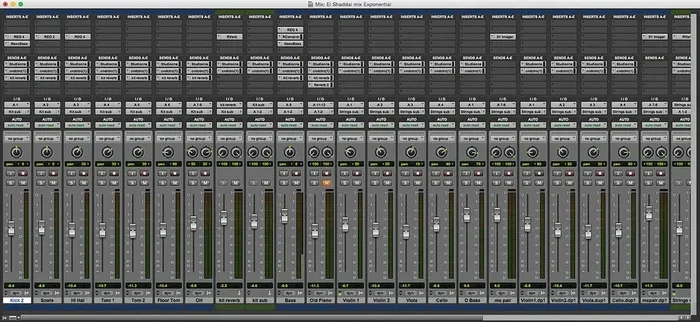
What makes Pro Tools stand out? It offers powerful features like advanced mixing consoles, surround sound support, and a massive library of plugins and virtual instruments. The software also supports third-party audio plugins, which gives you incredible flexibility.
For a long time, Pro Tools was only available on macOS. Many professionals considered it a Mac-only tool. But Avid expanded its reach. Today, Pro Tools runs on both macOS and Windows. This means Windows users can access the same powerful features that Mac users enjoy. It levels the playing field and gives PC users a top-tier audio production option.
Understanding what Pro Tools offers is the first step. The next step is figuring out if your Windows machine can handle it. Let us get into that.
Pro Tools on Windows: System Requirements
Before you install Pro Tools on Windows, you need to check your system. Avid has specific requirements that your computer must meet. Running Pro Tools on an underpowered machine will lead to frustration, crashes, and poor audio performance.
Minimum System Requirements
Here are the baseline requirements for running Pro Tools on Windows:
- Operating System: Windows 10 (64-bit) version 1903 or later
- Processor: Intel Core i5 or AMD equivalent
- RAM: 8 GB minimum
- Storage: 15 GB of free disk space for installation
- Display: 1280 x 800 resolution
- Audio Interface: A compatible ASIO or Windows audio driver
These are the bare minimums. Your experience will be functional but not ideal. You may encounter latency issues, especially with larger sessions or many plugins.
Recommended System Requirements
For a smooth and professional experience, aim for these specs:
- Operating System: Windows 10 or Windows 11 (64-bit)
- Processor: Intel Core i7 or AMD Ryzen 7 or better
- RAM: 16 GB or more
- Storage: SSD with at least 50 GB of free space
- Display: 1920 x 1080 resolution or higher
- Audio Interface: A dedicated professional audio interface with low-latency drivers
Meeting the recommended specs makes a huge difference. You will notice faster loading times, smoother playback, and lower latency. If you plan to work with large sessions or heavy plugin chains, go even higher on RAM and storage.
Hardware Compatibility Checklist
Not all hardware plays nice with Pro Tools on Windows. Here is a quick checklist to verify compatibility:
- Check Avid’s official hardware compatibility list before purchasing any audio interface
- Make sure your audio interface has ASIO or Windows driver support
- Verify that your audio drivers are up to date
- Use a dedicated sound card if possible, rather than relying on your motherboard’s built-in audio
- Ensure your USB or Thunderbolt ports are fast enough for your audio interface
Taking the time to verify hardware compatibility saves you headaches later. It ensures that your Pro Tools experience on Windows is as seamless as possible.
Installing Pro Tools on Windows
The installation process for Pro Tools on Windows is straightforward. Avid provides a guided installer that walks you through each step. Here is how to get started.
Step 1: Create an Avid Account
First, head to the Avid website and create an account. You will need this account to download Pro Tools and manage your license. If you already have an account, simply log in.
Step 2: Choose Your Edition
Next, select the Pro Tools edition that fits your needs. Avid offers several tiers, and we will cover them in detail in the next section. For now, just pick the one that matches your budget and workflow.
Step 3: Download the Avid Download Assistant
Avid uses the Avid Download Assistant to manage installations. This tool downloads all the necessary files and guides you through the setup process. It is a reliable and user-friendly way to install Pro Tools on Windows.
Step 4: Run the Installer
Once the download is complete, run the installer. Follow the on-screen prompts. The installer will check your system, install the necessary files, and configure your audio settings. The whole process usually takes 20 to 45 minutes, depending on your internet speed and hardware.
Step 5: Activate Your License
After installation, you need to activate your Pro Tools license. You can do this through the Avid License Administrator. If you purchased a subscription, sign in with your Avid account. If you have a perpetual license, enter your serial number.
Common Installation Issues on Windows
Sometimes things do not go smoothly. Here are a few common issues and quick fixes:
- Installation hangs or fails: Disable your antivirus software temporarily. It may be blocking the installer.
- Audio drivers not detected: Update your audio interface drivers from the manufacturer’s website.
- License activation fails: Check your internet connection and make sure your Avid account credentials are correct.
- Slow performance after install: Make sure your Windows is fully updated and that your audio drivers are the latest version.
Patience goes a long way during installation. Take your time, follow each step carefully, and you will have Pro Tools running on Windows in no time.
Pro Tools Editions Available for Windows
Avid offers several editions of Pro Tools, and all of them are available on Windows. Each edition is designed for a different level of user, from beginners to industry professionals. Let us break them down.
Pro Tools Intro
Pro Tools Intro is the entry-level edition. It is perfect for beginners who want to learn the ropes of audio production. It supports up to 16 audio tracks and includes a decent set of built-in effects and virtual instruments. The price is very affordable, making it a great starting point for hobbyists and students.
Pro Tools Artist
Pro Tools Artist is a step up. It supports more tracks, more plugins, and advanced mixing features. It is ideal for independent musicians, small studios, and podcast producers who need more power than Intro but do not need the full professional suite.
Pro Tools Standard
Pro Tools Standard is the mid-tier edition. It offers professional-grade features like advanced automation, surround mixing, and expanded plugin support. This edition is suitable for working professionals who need reliable, high-quality tools without the top-tier price tag.
Pro Tools Ultimate
Pro Tools Ultimate is the top-of-the-line edition. It includes every feature Avid offers. Advanced workflows, unlimited tracks, surround and immersive audio support, and the highest performance capabilities are all included. This is the edition used by major studios and elite professionals in the music and post-production industries.
Which Edition Should You Choose?
Your choice depends on your needs and budget. Here is a quick comparison:
- Beginner or hobbyist: Start with Pro Tools Intro
- Independent musician or podcaster: Go with Pro Tools Artist
- Working professional: Choose Pro Tools Standard
- Studio or elite professional: Invest in Pro Tools Ultimate
All editions work on Windows. You can always upgrade later as your skills and needs grow. Avid makes it easy to move between tiers, so you are never locked in.
macOS vs Windows for Pro Tools
One of the most common questions we hear is whether Pro Tools performs better on macOS or Windows. The truth is, both platforms have strengths and weaknesses. Let us compare them honestly.
Where Windows Shines
Windows offers more hardware flexibility. You can build or buy a PC with virtually any combination of components. This means you can customize your machine for audio production without being tied to Apple’s hardware ecosystem. Windows PCs also tend to be more affordable at similar performance levels.
Another advantage of Windows is the wider range of hardware compatibility. Many audio interfaces, MIDI controllers, and studio monitors work seamlessly with Windows. You have more choices when building your studio setup.
Where macOS Shines
macOS has historically had a slight edge in audio performance. The tight integration between Apple hardware and macOS often results in fewer driver conflicts and smoother operation. Many professionals still prefer macOS for critical listening and mixing work.
That said, Windows has come a long way. With the right hardware and driver setup, Pro Tools on Windows can perform just as well as on macOS for most workflows. The gap has narrowed significantly over the years.
The Bottom Line
Choose the platform that fits your workflow and budget. If you already own a Windows PC that meets the system requirements, you can absolutely use Pro Tools on Windows and produce professional-quality audio. Do not let platform loyalty hold you back.
Tips for Optimizing Pro Tools on Windows
Getting Pro Tools installed is only half the battle. To get the best performance, you need to optimize your Windows system for audio production. Here are some expert tips that make a real difference.
Update Your Audio Drivers
Outdated audio drivers are one of the biggest causes of performance issues. Always keep your audio interface drivers up to date. Visit the manufacturer’s website and download the latest version. ASIO drivers are preferred for low latency, so make sure you have the correct ASIO driver installed for your interface.
Adjust Windows Power Settings
Windows power settings can interfere with audio performance. Go to your Control Panel, select Power Options, and set your plan to High Performance. This prevents Windows from throttling your CPU during intensive audio sessions.
Disable Unnecessary Background Processes
Background apps consume CPU and memory resources. Before a recording or mixing session, close unnecessary programs. Disable startup apps you do not need. Every bit of freed-up processing power helps Pro Tools run smoother.
Use an SSD for Your Audio Drive
Storage speed matters a lot in audio production. An SSD loads sessions faster and handles large audio files more efficiently than a traditional hard drive. If possible, dedicate an SSD to your audio projects and keep it well-organized.
Manage Your Plugin Load
Too many plugins can overwhelm your system. Use plugins judiciously. Bypass plugins you are not actively using. Freeze tracks when possible to reduce the processing load. These small habits keep your sessions running smoothly.
Set Your Buffer Size Correctly
Your buffer size affects latency and performance. A smaller buffer size gives you lower latency but requires more processing power. A larger buffer size is easier on your CPU but introduces more delay. Find the sweet spot for your system. Start with 256 or 512 samples and adjust from there.
Keep Windows Updated
Windows updates often include performance improvements and bug fixes. Keep your operating system current. However, be cautious with major updates right before a critical project deadline. Test updates on a non-critical system first if possible.
Quick Optimization Checklist
- Update all audio drivers to the latest versions
- Set Windows power plan to High Performance
- Close unnecessary background applications
- Use an SSD for audio storage
- Manage plugin usage wisely
- Set buffer size to match your system capabilities
- Keep Windows and Pro Tools fully updated
Following these tips will help you get the most out of Pro Tools on Windows. You will experience fewer glitches, lower latency, and a more enjoyable production workflow.
Troubleshooting Common Pro Tools Windows Issues
Even with the best setup, you may run into issues. Here are some common problems and how to fix them.
No Sound or Audio Output
If you cannot hear audio, check your audio interface settings in Pro Tools. Make sure the correct driver is selected. Verify that your interface is properly connected and powered on. Also check your Windows volume settings.
High Latency During Playback
High latency usually means your buffer size is too small or your CPU is overloaded. Increase the buffer size in Pro Tools preferences. Close background applications. If the problem persists, consider upgrading your hardware.
Crashing or Freezing
Crashes can be caused by incompatible plugins, outdated drivers, or insufficient RAM. Try disabling plugins one at a time to identify the culprit. Update your drivers. If you are running close to the minimum RAM, consider upgrading.
License Activation Problems
If your license will not activate, check your internet connection. Make sure you are signed into the correct Avid account. If you are using a physical iLok USB key, try a different USB port or cable.
Most Pro Tools issues on Windows have straightforward solutions. Patience and systematic troubleshooting will get you back on track quickly.
Final Thoughts
So, can you use Pro Tools on Windows? Without a doubt, yes. Pro Tools on Windows is a powerful, capable, and professional-grade audio production platform. With the right system, the correct edition, and a bit of optimization, you can produce music, podcasts, soundtracks, and audio projects at the highest level.
Whether you are just starting out with Pro Tools Intro or diving deep into Pro Tools Ultimate, Windows gives you the flexibility and power you need. The key is meeting the system requirements, keeping your drivers updated, and taking the time to optimize your setup.
Do not let the myth that Pro Tools is only for Mac users hold you back. The Windows platform has matured into a fantastic environment for audio production. Embrace it, explore it, and make the most of what Pro Tools on Windows has to offer.
Now that you have all the information you need, it is time to take action. Check your system specs, pick the right edition, and start creating. Your Pro Tools journey on Windows begins today.
Frequently Asked Questions
Can I run Pro Tools on Windows 11?
Yes, Pro Tools is compatible with Windows 11. Avid officially supports the latest version of Pro Tools on Windows 11. Make sure your system meets the recommended requirements for the best performance. Always check Avid’s website for the latest compatibility updates.
Is Pro Tools free on Windows?
Pro Tools is not completely free, but Avid offers a free version called Pro Tools Intro. It has limited features compared to the paid editions but is a great way to get started. You can also try Pro Tools with a free trial before committing to a purchase.
What audio interface works best with Pro Tools on Windows?
Avid’s own interfaces like the Avid HDX and Mbox series are designed for optimal compatibility. However, many third-party interfaces from brands like Focusrite, Universal Audio, and Steinberg also work well. Always check Avid’s hardware compatibility list before buying.
Can I use Pro Tools plugins on Windows?
Yes, Pro Tools supports both native plugins and third-party plugins on Windows. Most VST and AU plugins work, but you should verify compatibility with Avid’s plugin support page. Always use the latest plugin versions for the best experience.
Do I need an internet connection to use Pro Tools on Windows?
You need an internet connection for initial installation and license activation. After that, you can use Pro Tools offline. If you have a subscription plan, you will need to connect to the internet periodically to verify your license.
How much does Pro Tools cost on Windows?
Pricing varies by edition. Pro Tools Intro starts at an affordable price for beginners. Pro Tools Artist and Standard are mid-range options for professionals. Pro Tools Ultimate is the premium edition with the full feature set. Avid also offers subscription plans that spread the cost over monthly or annual payments.
=== CONCLUSION ===
Using Pro Tools on Windows opens up a world of professional audio production possibilities. The software is powerful, versatile, and fully supported on the Windows platform. By meeting the system requirements, choosing the right edition, and following our optimization tips, you can achieve outstanding results.
Remember, the key to success with Pro Tools on Windows is preparation. Check your hardware, update your drivers, and take the time to learn the software. Whether you are producing music, editing podcasts, or scoring video, Pro Tools on Windows has the tools you need to succeed.
Start today. Explore the editions, test the free trial, and see what Pro Tools on Windows can do for your audio projects. The creative possibilities are limitless.