How to Open Developer Tools in Edge on Your Computer
Opening developer tools in Microsoft Edge is simple once you know the right shortcuts and methods. You can use keyboard shortcuts like F12 or Ctrl+Shift+I, access the menu, or even use the command palette. This guide covers every way to open Edge developer tools on Windows and Mac so you can start inspecting, debugging, and optimizing web pages right away.
Whether you are a web developer, a designer, or just someone who likes to peek behind the curtain of a website, knowing how to open developer tools in Edge is an essential skill. Microsoft Edge comes packed with powerful built-in tools that let you inspect HTML, debug JavaScript, monitor network activity, and so much more. The best part is that you do not need to install anything extra. Everything is already there, built right into your browser.
If you have never used developer tools before, the experience can feel a little intimidating at first. But trust us, it is way simpler than it looks. Once you learn the basic shortcuts and understand the layout, you will wonder how you ever lived without them. This guide walks you through every method to open Edge developer tools, gives you tips for getting the most out of them, and helps you troubleshoot if something is not working.
We will also cover the differences between Windows and Mac, because the shortcuts are not always the same. By the end of this article, you will be able to open developer tools in Edge in seconds, no matter which device you are using. Let us get started.
Key Takeaways
- Multiple Methods: There are at least five different ways to open developer tools in Edge, including keyboard shortcuts, menus, and the command palette.
- F12 Is the Fastest: Pressing F12 on your keyboard instantly opens the developer tools panel in Edge.
- Works on Windows and Mac: The shortcuts differ slightly between operating systems, and we cover both.
- Customizable Layout: You can dock, undock, and resize the developer tools panel to fit your workflow.
- Powerful Features: Edge developer tools include console, network, elements, and performance tabs for full web inspection.
📑 Table of Contents
- What Are Developer Tools in Edge?
- How to Open Developer Tools in Edge Using Keyboard Shortcuts
- How to Open Developer Tools in Edge Using the Menu
- How to Open Developer Tools Using the Command Palette
- Customizing the Developer Tools Panel
- Troubleshooting: Developer Tools Not Opening
- Tips for Getting the Most Out of Edge Developer Tools
- Frequently Asked Questions
- Conclusion
What Are Developer Tools in Edge?
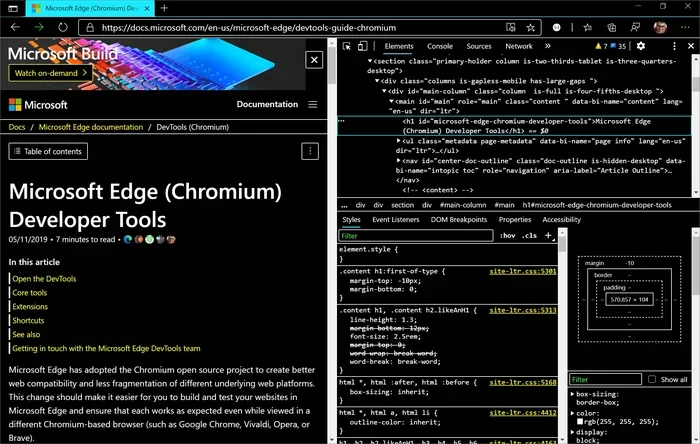
Before we dive into the how, let us quickly talk about the what. Edge developer tools, often called DevTools, are a set of built-in web engineering tools. They let you look at the code behind any web page, change things in real time, and see how those changes affect the page. Think of it like having a superpower for understanding how websites work.
Here is a quick look at what you can do with Edge developer tools:
- Inspect Elements: See and edit the HTML and CSS of any web page.
- Console Logging: Run JavaScript commands and debug errors directly in the browser.
- Network Monitoring: Track every request a page makes, including images, scripts, and API calls.
- Performance Analysis: Measure how fast a page loads and find bottlenecks.
- Device Simulation: Test how a website looks on different screen sizes and devices.
These tools are used by professionals every day, but they are equally valuable for casual users who want to learn more about web design or troubleshoot why a page is not displaying correctly.
How to Open Developer Tools in Edge Using Keyboard Shortcuts
Keyboard shortcuts are the fastest way to open Edge developer tools. Once you memorize them, you will never need to click through menus again. Here are all the shortcuts you need to know.
For Windows Users
If you are on a Windows PC, you have several shortcut options:
- F12: This is the most common and widely used shortcut. Just press the F12 key at the top of your keyboard, and the developer tools panel opens instantly.
- Ctrl + Shift + I: This combination opens the tools panel directly. It works the same as F12 and is handy if your function keys are disabled.
- Ctrl + Shift + J: This shortcut opens the tools panel and jumps straight to the Console tab. Great if you are mainly debugging JavaScript errors.
- Ctrl + Shift + C: This activates the element selector tool. Your cursor turns into a small targeting icon, and you can click any element on the page to inspect it.
For Mac Users
If you are using a Mac, the shortcuts are slightly different because the Command key replaces the Ctrl key:
- Option + Command + I: This is the Mac equivalent of Ctrl + Shift + I. It opens the developer tools panel.
- Option + Command + J: Opens the tools panel and goes straight to the Console tab.
- Option + Command + C: Activates the element selector tool so you can click and inspect any part of the page.
Pro tip: If the F12 key does not work on your Windows laptop, it is likely because the function keys are set to media controls by default. Try pressing Fn + F12, or go to your keyboard settings and switch the function key behavior.
How to Open Developer Tools in Edge Using the Menu
Not a fan of keyboard shortcuts? No problem. You can also open Edge developer tools through the browser menu. This method is great if you are new to DevTools or prefer using your mouse.
Step-by-Step Instructions
Follow these simple steps to open developer tools using the menu:
- Open Microsoft Edge and navigate to any web page.
- Click the three horizontal dots in the upper-right corner of the browser window. This opens the main menu.
- Hover over “More tools” in the dropdown menu.
- Click “Developer tools” from the submenu that appears.
- The developer tools panel will open, usually docked to the right side of the browser window.
That is it. It is a straightforward process, and it works the same way on both Windows and Mac. If you use this method often, you might want to bookmark the page or add it to your favorites for even faster access.
Quick Tip for Power Users
You can also right-click anywhere on a web page and select “Inspect” from the context menu. This is a super fast shortcut that opens the developer tools directly on the element you clicked. It is one of the most popular ways to inspect specific parts of a web page, and it saves a ton of time when you are doing detailed work.
How to Open Developer Tools Using the Command Palette
This is one of the lesser-known but incredibly useful methods. The command palette lets you search for and open any feature in Edge, including developer tools. It is especially helpful if you forget your shortcuts or want to access a specific DevTools tab directly.
Here is how to use it:
- Press Ctrl + Shift + P on Windows or Option + Command + P on Mac.
- A search bar will appear at the top of the browser.
- Type “developer tools” or “DevTools.”
- Press Enter, and the developer tools panel will open.
The command palette is a powerful feature that goes well beyond just opening DevTools. You can use it to clear the browser cache, toggle device mode, and access many other hidden features. It is worth spending a few minutes exploring what it can do.
If you are interested in learning more about how Edge handles various computing tasks and system-level features, you might also want to check out how to power your house with a generator for reliable backup during your work sessions.
Customizing the Developer Tools Panel
Once you know how to open Edge developer tools, the next step is learning how to customize the layout. The default setup works for most people, but you can tweak it to match your workflow. Here are the most useful customization options.
Docking and Undocking
By default, the developer tools panel docks to the bottom or right side of the browser window. But you can change this behavior:
- Dock to Bottom: The panel sits below the web page. Best for wide screens.
- Dock to Right: The panel sits to the right of the web page. Great for side-by-side viewing.
- Dock to Left: The panel sits to the left. Useful if you are more comfortable with left-side panels.
- Undock into Separate Window: The panel opens in its own window, giving you more screen space. Perfect for dual-monitor setups.
To change the docking option, click the three-dot menu icon in the top-right corner of the developer tools panel and select your preferred layout.
Resizing the Panel
You can drag the border of the developer tools panel to make it larger or smaller. If you are working with a small screen, making the panel narrower gives you more room to see the actual web page. Conversely, if you are doing detailed code editing, you might want to expand the panel for a better view of the source code.
Adding Custom Shortcuts
If you find yourself using certain DevTools features repeatedly, consider setting up custom keyboard shortcuts through your operating system settings. While Edge does not let you remap DevTools shortcuts natively, you can use third-party tools to create custom hotkeys that trigger specific actions within the panel.
Troubleshooting: Developer Tools Not Opening
Sometimes things do not go as planned. If you are trying to open Edge developer tools and nothing happens, here are some common fixes.
F12 Key Not Working
This is the most common issue, especially on laptops. The F12 key is often shared with media controls like volume or brightness. To fix this:
- Press Fn + F12 instead of just F12.
- Go to Windows Settings, then Accessibility, then Keyboard, and toggle on “Use the F1, F2, etc. keys as standard function keys.”
- Check if your laptop manufacturer has a dedicated function key settings app that lets you change this behavior.
Developer Tools Disabled by IT Policy
If you are using a work or school computer, your IT administrator may have disabled developer tools. In this case, you will not be able to open them unless you contact your IT department and request access. This is a security measure, not a bug.
Edge Browser Needs an Update
Older versions of Edge may have bugs or missing features. Make sure your browser is up to date by going to Edge Settings, clicking “About Microsoft Edge,” and allowing any pending updates to install.
Tips for Getting the Most Out of Edge Developer Tools
Now that you know how to open Edge developer tools using multiple methods, here are some tips to help you get more value from them.
- Learn the Console Tab First: The console is the most beginner-friendly part of DevTools. Start by typing simple JavaScript commands and see the results instantly.
- Use the Network Tab to Diagnose Slow Pages: If a website is loading slowly, the Network tab will show you exactly which resources are taking the longest to load.
- Experiment with the Elements Tab: Try changing CSS values in the Elements panel and watch the web page update in real time. It is the best way to learn how HTML and CSS work together.
- Use Device Mode for Mobile Testing: Click the device toggle icon in the top-left of the DevTools panel to simulate how your site looks on phones and tablets.
- Bookmark the DevTools Docs: Microsoft maintains excellent documentation for Edge DevTools. Bookmark it for quick reference when you need to learn a new feature.
For those who work extensively with Edge and other browser tools, having a reliable setup matters. You might also want to learn about how long a generator can run to ensure your workspace stays powered during long coding sessions or debugging marathons.
Frequently Asked Questions
Can I open developer tools in Edge on a Chromebook?
Yes, you can. Chromebooks run the Edge browser just like any other device. Use the keyboard shortcut Ctrl + Shift + I on a Chromebook keyboard, or right-click on a page and select “Inspect” to open the developer tools panel instantly.
Is there a way to open developer tools on a specific tab automatically?
Edge does not have a built-in setting to auto-open DevTools on a specific tab. However, you can use extensions from the Edge Add-ons store that allow you to configure custom startup behaviors, including automatically opening developer tools when a page loads.
What is the difference between Edge developer tools and Chrome DevTools?
Edge is built on the same Chromium engine as Chrome, so the developer tools are nearly identical. You will find the same tabs, features, and interface. Any tutorial written for Chrome DevTools will work just as well in Edge.
Can I use developer tools to edit a live website?
You can make temporary edits to a web page using developer tools, but those changes only affect your local view. They do not get saved to the actual website. Other visitors will still see the original page. This makes DevTools a safe space to experiment and learn.
Are Edge developer tools free to use?
Absolutely. Edge developer tools are completely free and built into the browser. There is no need to download any additional software, purchase any extensions, or sign up for any service. They are available to every Edge user at no cost.
How do I close developer tools once I am done?
You can close developer tools by pressing F12 again, clicking the X button in the top-right corner of the panel, or using the same menu path you used to open them. Simply click the three dots, go to More Tools, and uncheck Developer Tools to close the panel.
For those who also work with physical equipment and need reliable power solutions, understanding how much gas a generator uses can help you plan for uninterrupted work sessions in any environment.
Conclusion
Learning how to open developer tools in Edge is one of the simplest yet most valuable skills you can pick up for web development and browsing. Whether you prefer the speed of keyboard shortcuts like F12 and Ctrl + Shift + I, the simplicity of the browser menu, or the power of the command palette, there is a method that fits your style perfectly.
Once you open Edge developer tools for the first time, you will see just how much information and control you have over any web page. The console, the network monitor, the elements inspector, the performance analyzer, and the device emulator are all at your fingertips. Take some time to explore each tab, experiment with the features, and build your confidence.
The web is an incredible place, and Edge developer tools give you a backstage pass to see how it all works. Start using them today, and you will be amazed at how much more you understand about the websites you visit every single day.
If you are setting up a dedicated workspace for your development work, you might also want to explore what size generator to run a house to ensure you have reliable power backup for all your computing needs. And for those who rely on consistent connectivity, knowing how to wire a generator to a breaker box safely can make all the difference in keeping your tools running without interruption.